Data schemas
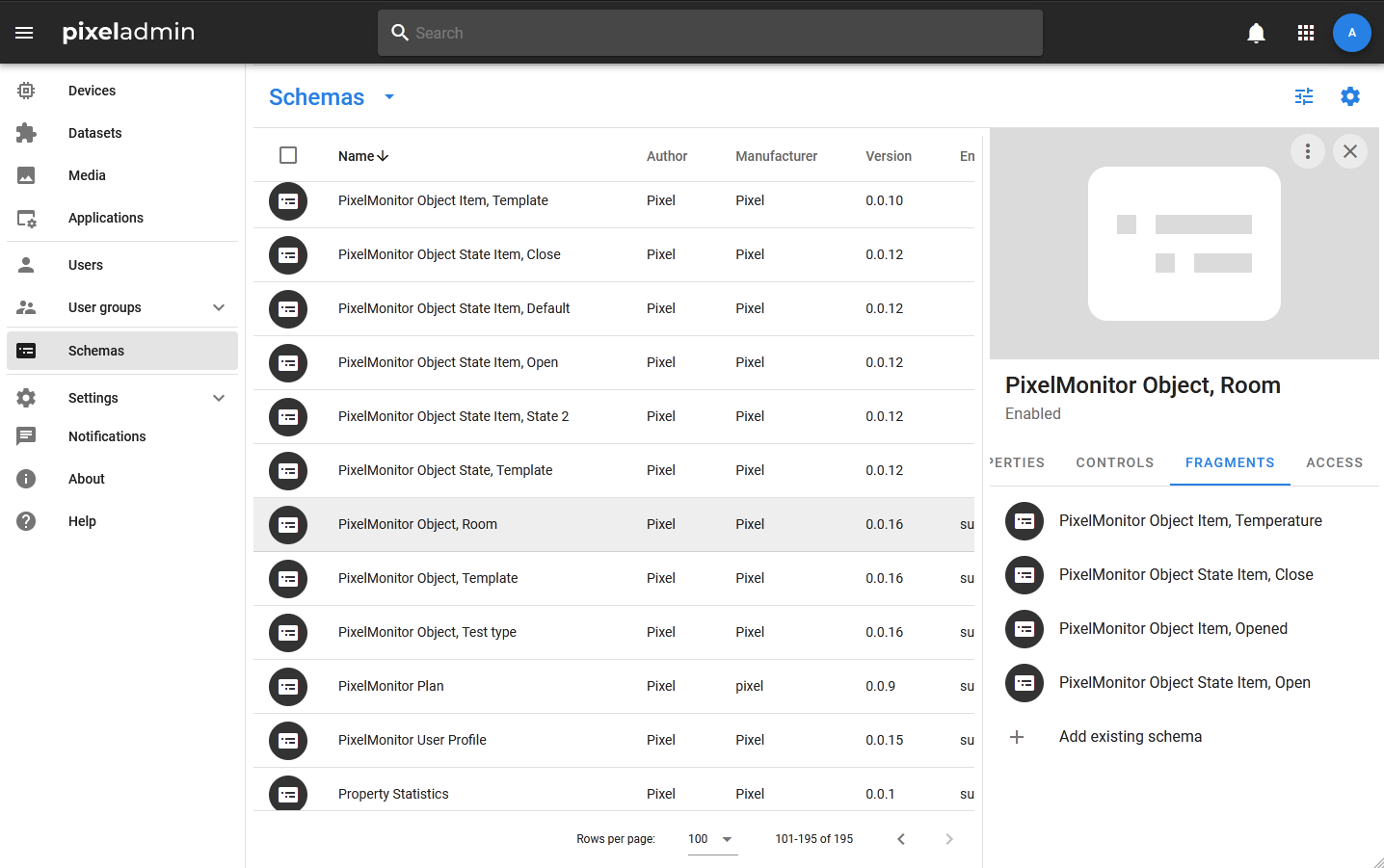
The Schemes section of the Pixel Admin application shows the data schemas used in the system: these include application data schemas and driver data schemas.
Viewing data schemas
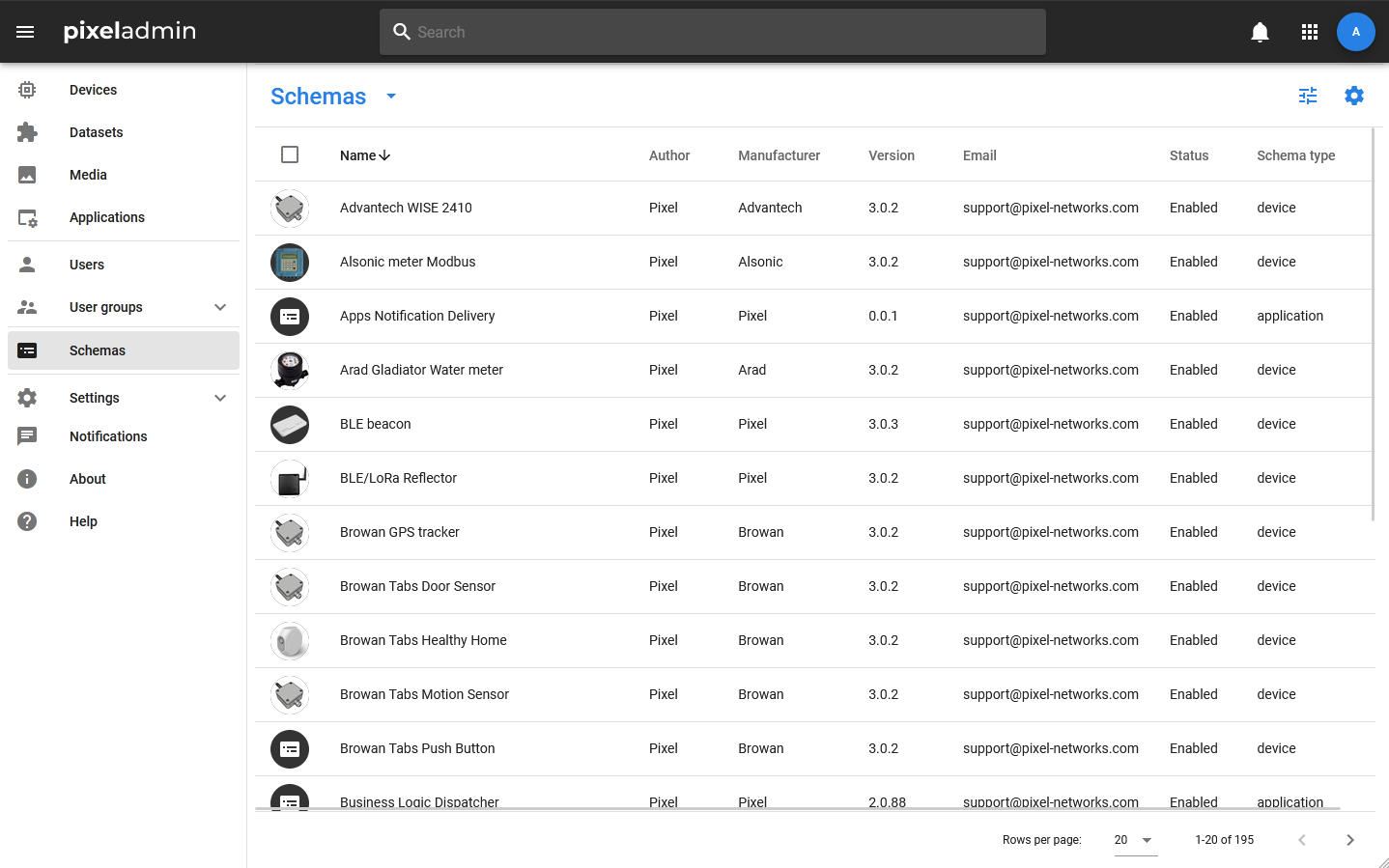
A complete list of application data schemas that exist in the party is displayed in a table that is called when you select the same item in the menu. It contains information from the following fields:
- Name — name of the data schema.
- Status — Enable / Disable status of the data schema. If the data schema gets the status Disabled, then creating objects based on it becomes impossible.
- Scheme type — the type of data schema (device, dataset, media).
- Author — name of the author of the data schema.
- Email — contact e-mail of the author of the data schema.
- Version — the version of the data schema.
- Manufacturer — developer of the application for which the data schema is implemented.
- Editors — the group that has the Edit right.
- Users — the group that has the right to Use.
- Readers — the group that has the Read right.
More detailed information about the data schema is displayed in its card. The header displays the image, icon, and Enable / Disable status. The card includes the following tabs:
- GENERAL — basic information about the data schema. This displays the name of the serviceapp, data from the META group, description, and UUID.
- PROPERTIES — a tab that displays properties that are part of the data schema, divided into groups.
- CONTROLS — a tab that displays the methods implemented within this schema.
- FRAGMENTS — a tab that displays a list of fragment diagrams. If the diagram itself becomes a fragment, then this tab stops being displayed.
- ACCESS — a standard tab with information about access rights.
Composite data schemas
Through the Pixel Admin interface, you can create not only separate data schemas, but also nested structures, marking some schemas as fragments and binding them to container schemas.
Unlike ordinary nested objects, objects created on the basis of fragment schemas cannot be attached or detached manually, nor can they exist separately from container objects. The depth of nesting is also defined for them: a fragment object cannot act as a container for another object, while there are no such restrictions for linked (nested) objects.
If fragment schemas are added to the data schema, then when creating objects based on it, fragment objects will be created automatically. At the same time, the number of fragment objects may vary. Thus, you can add several objects of the same type with different data to one object.
Managing data schemas
The following actions are available for data schemas:
- Edit — edit the main fields of the data schema.
- Change access — edit access rights. Access rights to the data schema include read, edit, and create objects and presets using the schema.
- Disable / Enable — change the status of Disable / Enable. If the data schema is marked as Disabled, it cannot be used to create new objects.
- Bump version — increases the version of the data schema by 1.
- Duplicate schema — creating a copy of the schema with all the properties and controls. A name, tags, and description are set for the new schema.
- Copy UUID — copy the UUID of the schema.
- Delete — delete.
Properties
Properties are fields for storing information about the operation of an application or device. For example, settings, measurement results and calculations. At the data schema level, the name, description, validation rules, and various settings are set for the property, such as the need to save the history of changes.
For the convenience of managing properties, they can be divided into groups corresponding to the purpose of the properties: for example, in the schemes of these devices, groups such as Measurements and Settings are used.
Creating properties
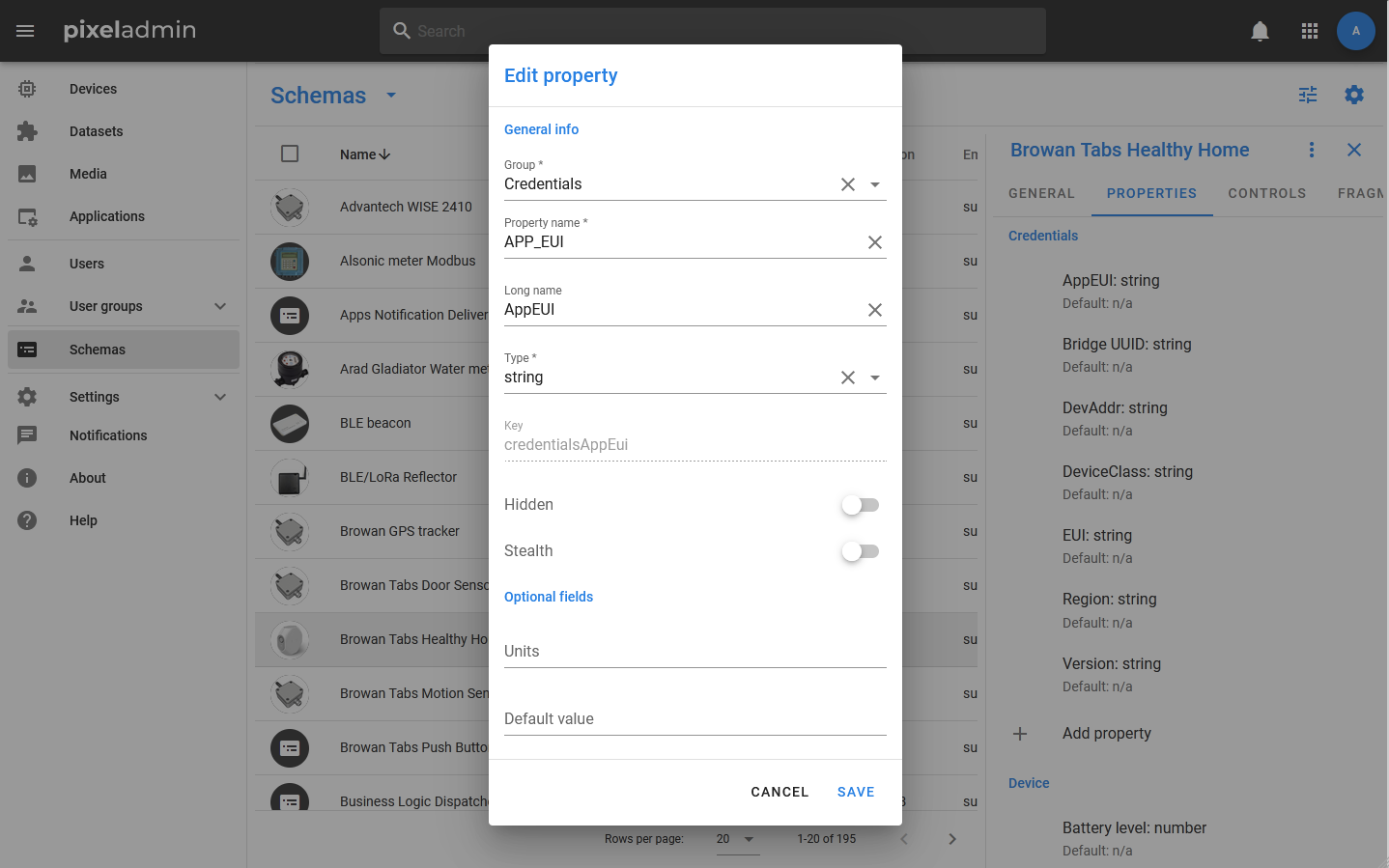
New properties are added in the PROPERTIES tab of the data schema card. You need to click on the «Add property» button and fill in the fields in the window that opens.
When creating a property, the following parameters are used:
- Group — you can create a new group by entering its name, or select one of the existing groups (if there are any).
- Property name — the name that applications working with the data schema will use.
- Long name — the name that will be displayed in user interfaces. It should have a form that will be understandable to users.
- Type — the data type that the property values will have.
- Stealth — a flag indicating that the property does not need to save history. If it is false (off), the history will be recorded.
- Units — if necessary, in this field you can specify the designation of units of measurement, which should be displayed together with the value of the property.
- Default value — the value that will be assigned to the property when creating the object, as well as assigned when using the «set by default» option.
- Regex — a regular expression for value validation, used for strings.
- Value set — a set of values. Used if the property must accept values from a predefined list.
- Mask — the mask according to which the value should be displayed in the interface.
When selecting the «validated json» type, an additional field appears in which you can specify a JSON schema describing the property.

Editing Properties
You can edit the descriptions of individual properties. To do this, open the PROPERTIES tab in the data schema card and select Edit in the Properties context menu. In the modal window that opens, you can edit the required information about the field (name, type, and Hidden flag indicating whether the field is hidden), description, and optional fields.
Important
Any changes to data schemas can lead to non-specific processing and presentation of application data, as well as errors when working with their settings.
Controls
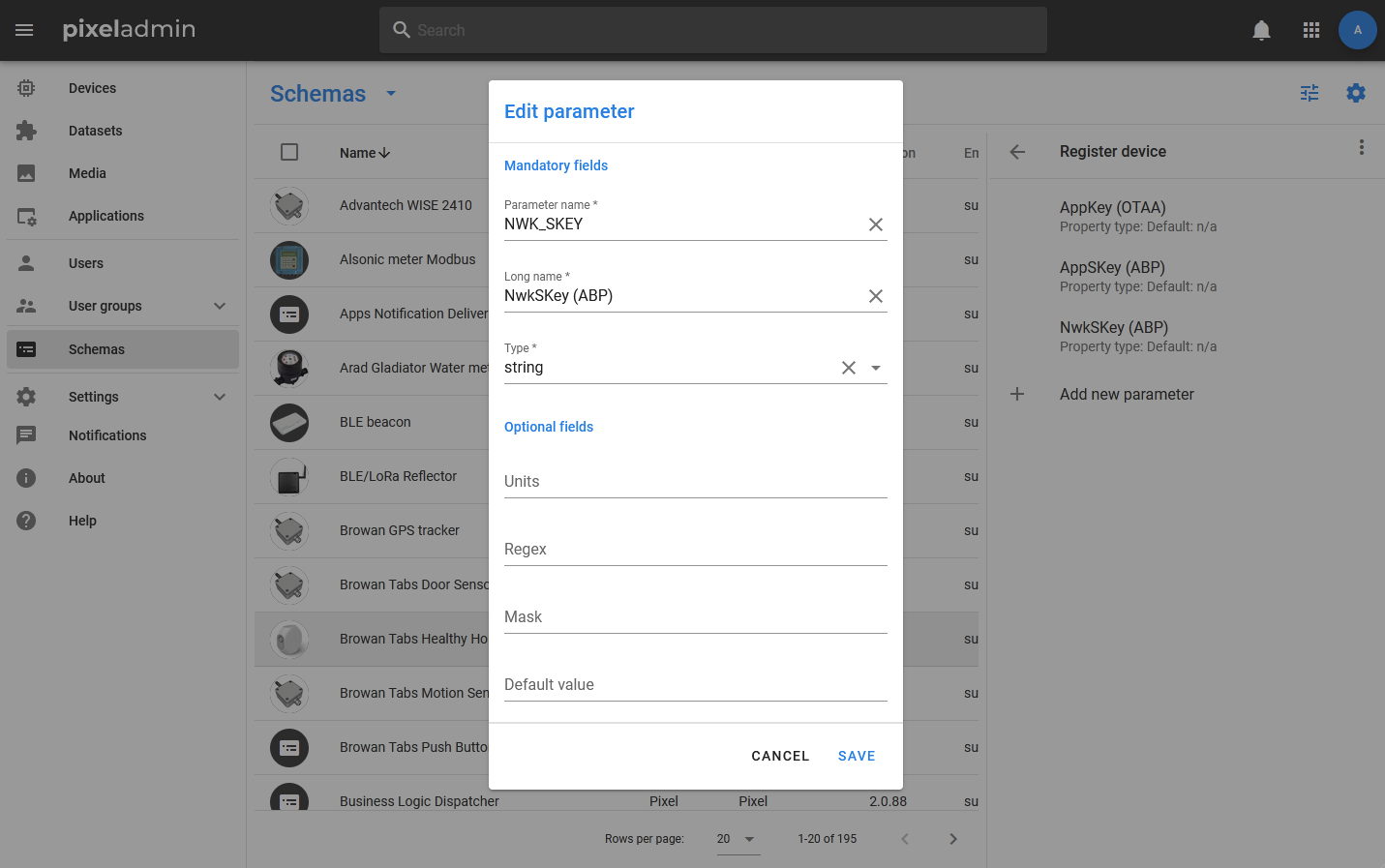
Control is the elements of the scheme with which you can make RPC calls. They do not contain an algorithm of actions that must be performed when called, but are used to describe input parameters.
Fragments
Fragments are data schemas that are used to create dependent objects. Such objects do not exist in the system.
You can add a fragment schema to the schema, provided that it does not have its own fragments. If the scheme is used as a fragment, then it is no longer possible to add fragments to it itself.
To add a fragment schema, you must:
- Create a new schema exactly as usual.
- Open the card of the top-level scheme (the one for which you need to add a fragment).
- Select the FRAGMENTS tab and click + Add existing Schema.
- Select the scheme that was created in step 1 from the list.