Users
Users accounts are described by a single data schema and displayed in a single section of the interface, but are divided into two types: people accounts (Persons) and application accounts (Apps).
All accounts store the information required for authorization (usernames and passwords), as well as additional contact information. Accounts are combined into groups that are granted rights to work with system entities. By logging in to user applications, such as Pixel Admin, a human user interacts with the system on behalf of their account, not on behalf of the application, and exercises the rights of the groups that their account belongs to.
Applications include all software products that have access to the party data, both external and internal (for example, solvers). An account is created for each application, and its data is used to organize interaction between the application and the kernel. Depending on the access rights, the application can only read data from the party, and can write its own data, change the data of other applications, send and receive various commands defined by the creators of the application.
View user's information
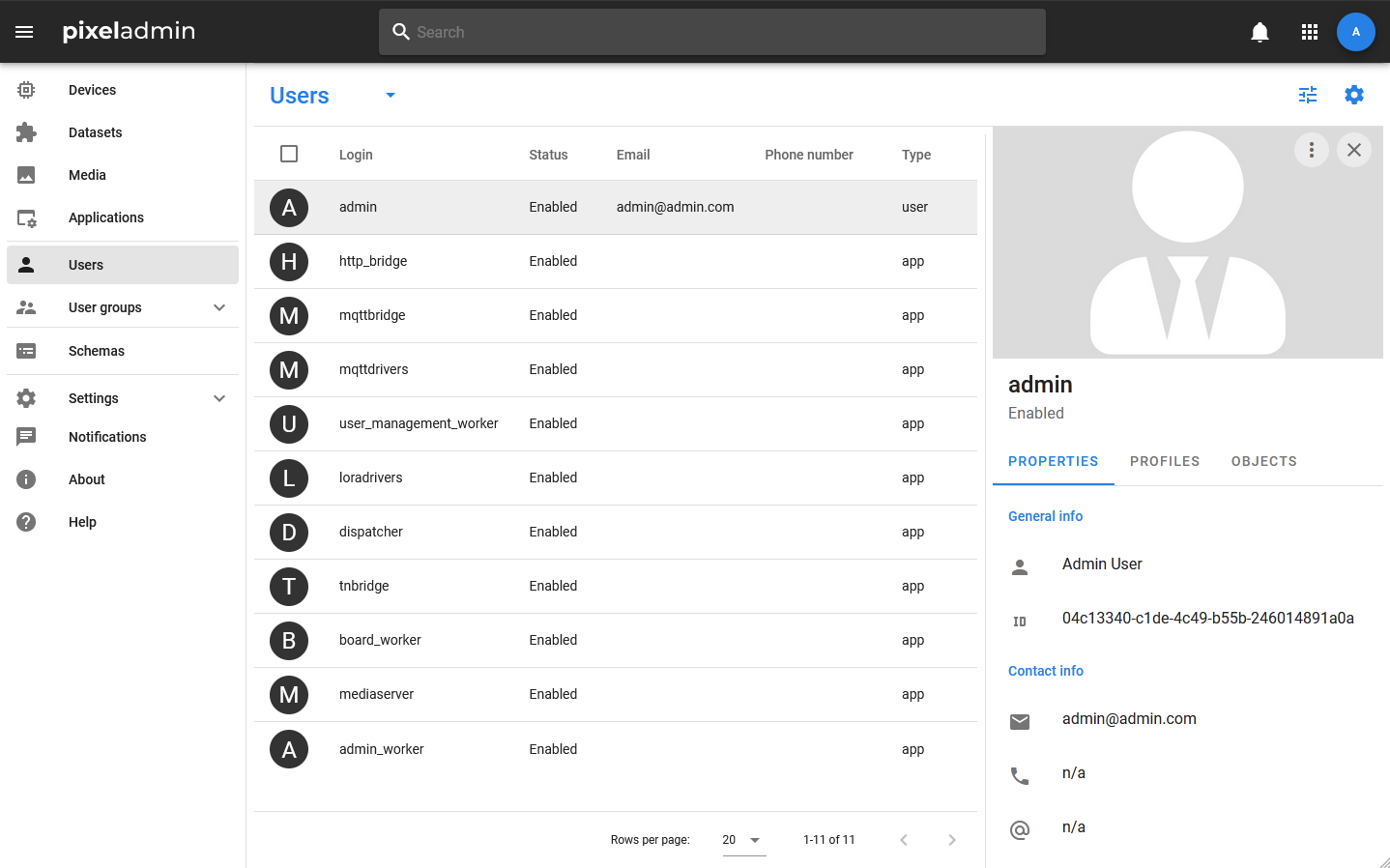
Information about all users that have accounts in the party is displayed in a table that opens when you select the menu item of the same name. The following fields are displayed in the table:
- Name — login and icon of the user.
- Status — the status of Enable / Disable. If the application receives the Disable status, then its interaction with the party is suspended, it does not receive and cannot transmit data. A human user who has received the Disable status will not be able to log in to applications.
- Type — the account type. For the app, the value is App, for the human user, Person.
- E—mail — contact email of the person responsible for the application or user.
- Phone number — contact phone number of the person responsible for the application or user.
- Show hidden — flag indicating whether the user should have access to the fields marked as hidden.
- Editors — the group that has the Edit right.
- Users — the group that has the right to Use.
- Readers — the group that has the Read right.
The list of displayed columns of the table can be changed in its settings.
More detailed information about the app is displayed in its card. The card header displays the application or person image (or a stub if the image was not loaded), icon, name and status. The information is divided into the following tabs:
- GENERAL — a tab with basic information about the user. It displays a list of groups to which the user has been added, contact details, lists of tags, description and UUID.
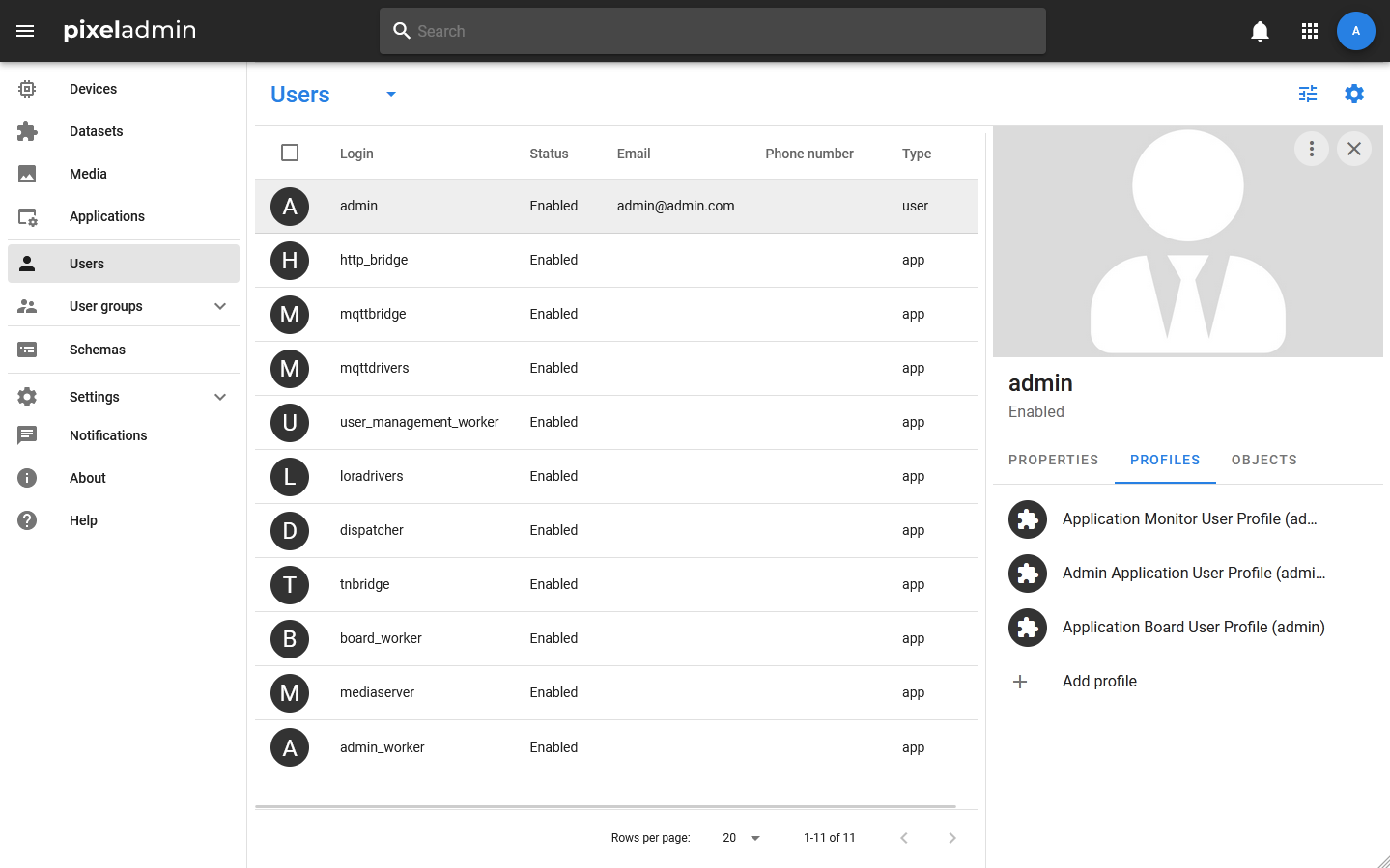
- PROFILES — a tab with a list of profiles of this user.
- NOTIFICATIONS — a tab that displays notifications received by this user.
- OBJECT — a tab that displays a list of objects associated with this account.
Creating user account
People and app accounts are created the same way. To add an account, select Users or one of the user groups from the menu. Then, in the table toolbar, select Users > Add new. In the window that opens, select the user type (App for the app or Person for the person). Next, you need to specify a username — a short name that will be used to log in to the system. The login must be unique within a single party. Then enter the password and fill in the fields with additional information: you can specify contact details, tags, status, description.
User management
The context menu of the card allows you to perform the following actions with the user:
- Edit — change the basic information about the user.
- Change access — change access rights to the user's account.
- Change password — change the user's password.
- Change user groups — change user groups (add to groups, remove from groups).
- Disable / Enable — sets the value of the Disable / Enable flag. If the user's account gets the status Disabled, then it will be impossible to log in to Pixel applications under this account, and the user will not receive any data from the appserver (including notifications).
- Copy UUID — copy the unique user ID.
- Delete — delete the user. Deletion means deleting the user's account from the party. If you want to deny the user access to Pixel Admin, but leave it in the party, you need to change its role to None.
User profiles
A user profile is a special set of data that is used by an application to store user information. For example, personal user settings, notification settings, and so on.
For applications of the Pixel family, the presence or absence of a profile also serves as an access condition: if a user has an account, but there is no application profile, then he will not be able to log in to this application. For example, to access the Pixel Monitor application, the user must have not only an account, but also a Pixel Monitor profile.
Profiles are not created automatically (with the exception of the Pixel Admin profile for the standard administrator account). They must be created manually by the administrator for each user.
Profile Management
To manage profiles, the PROFILES tab is provided in the user account card. It displays a list of profiles that have already been created for this user, and the + Add Profile button. By selecting an item in the list, you can view detailed information about the profile.
The profile can be disabled or deleted. Disabling allows you to deny the user access to the application, while preserving its settings: this may be necessary in case of temporary blocking. If necessary, the profile can be edited by the administrator through the Admin Pixel: since the profile is a dataset, all the same actions are available for it as for any other dataset.