PixelMonitor interface
The PixelMonitor application is a mapping application designed to visualize the measurement results of devices that Thingularity interacts with, as well as the results of their processing and other calculations.
Navigation
Navigation in the PixelMonitor app takes place in sections through the menu and on the map. In the menu, select a section (objects, groups of objects, geozones, landmarks, and so on): if the entities related to the section are geo-linked, they are displayed on the map. Navigation on the map is done with the mouse or touchpad, and you can also use the buttons in the lower right corner: the "Home" button returns the center of the map to the coordinates assigned as default, there are also zoom buttons and a geotag selection button. The map is also centered relative to the selected entities (objects, landmarks, geozones, plans).
Actions with the map:
- Returns to the default coordinate (Home), in the mobile version — to the user’s current coordinate.
- Zooming the map.
- Geotag selection — a specific geotag can be selected from the existing ones, and then only those objects that are located on this geotag will be displayed, or ALL, that is, all geotags.
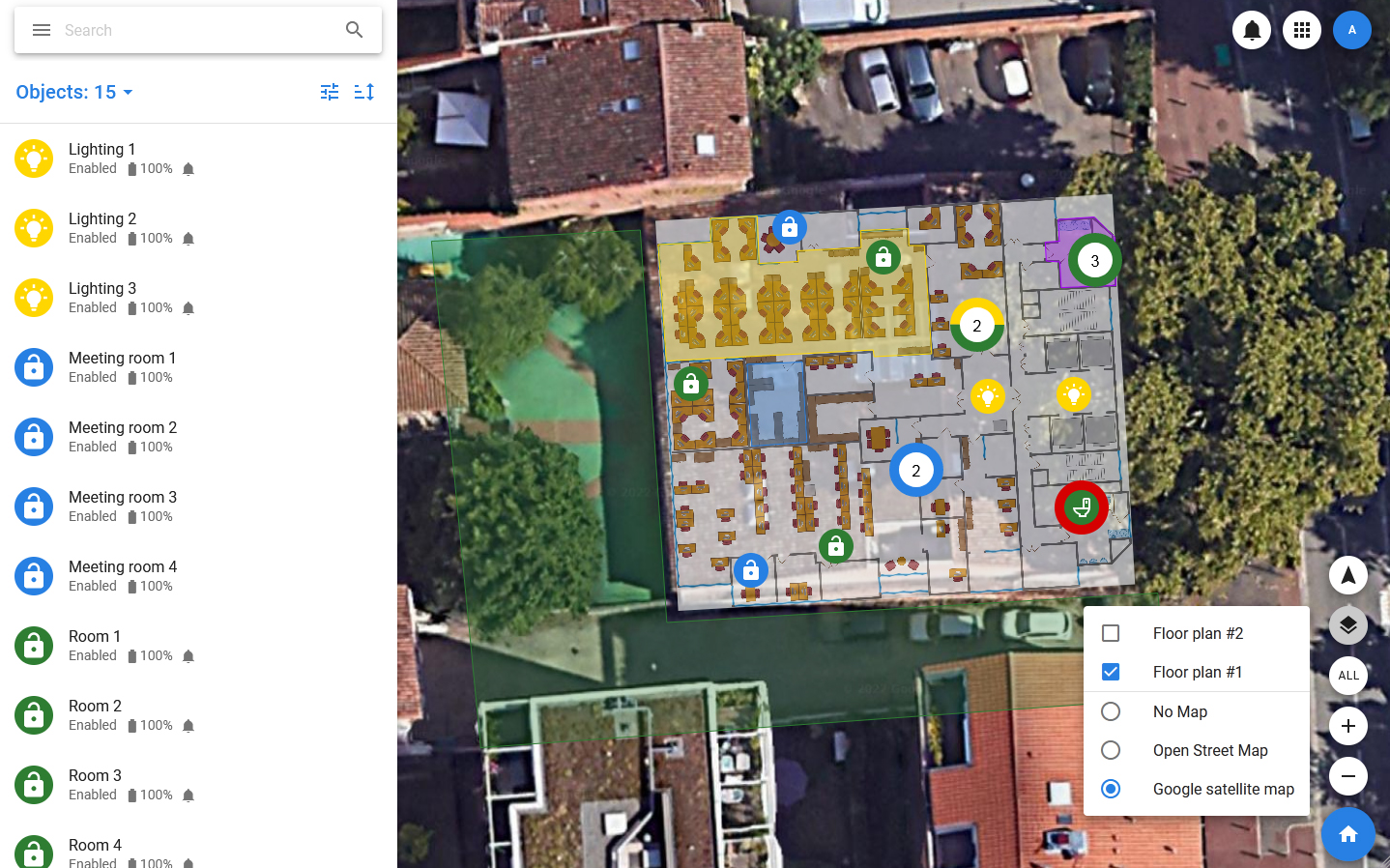
- Select the plans and maps to display.
- Map rotation: By default, the map is oriented to the cardinal directions, but can be rotated. The button turns on the rotation mode or returns the map to its original position.
The display of objects is also controlled using collections and groups that are displayed in the navigation menu: collections are groups of groups, and groups are divided into simple (groups) and geo-groups (geozones, landmarks).
Cards
Regardless of the selected category, detailed information about the list item will be displayed in the card on the left side of the screen. The card consists of a header that includes an entity image, an avatar, a name, a status or a set of statuses and a toolbar, as well as a set of tabs.
The toolbar of the card includes a button to open the context menu and a button to close the card, and can include a button to manage favorites (filled with an asterisk — remove from favorites, not filled — add). Closing the card returns you to the list.
Settings
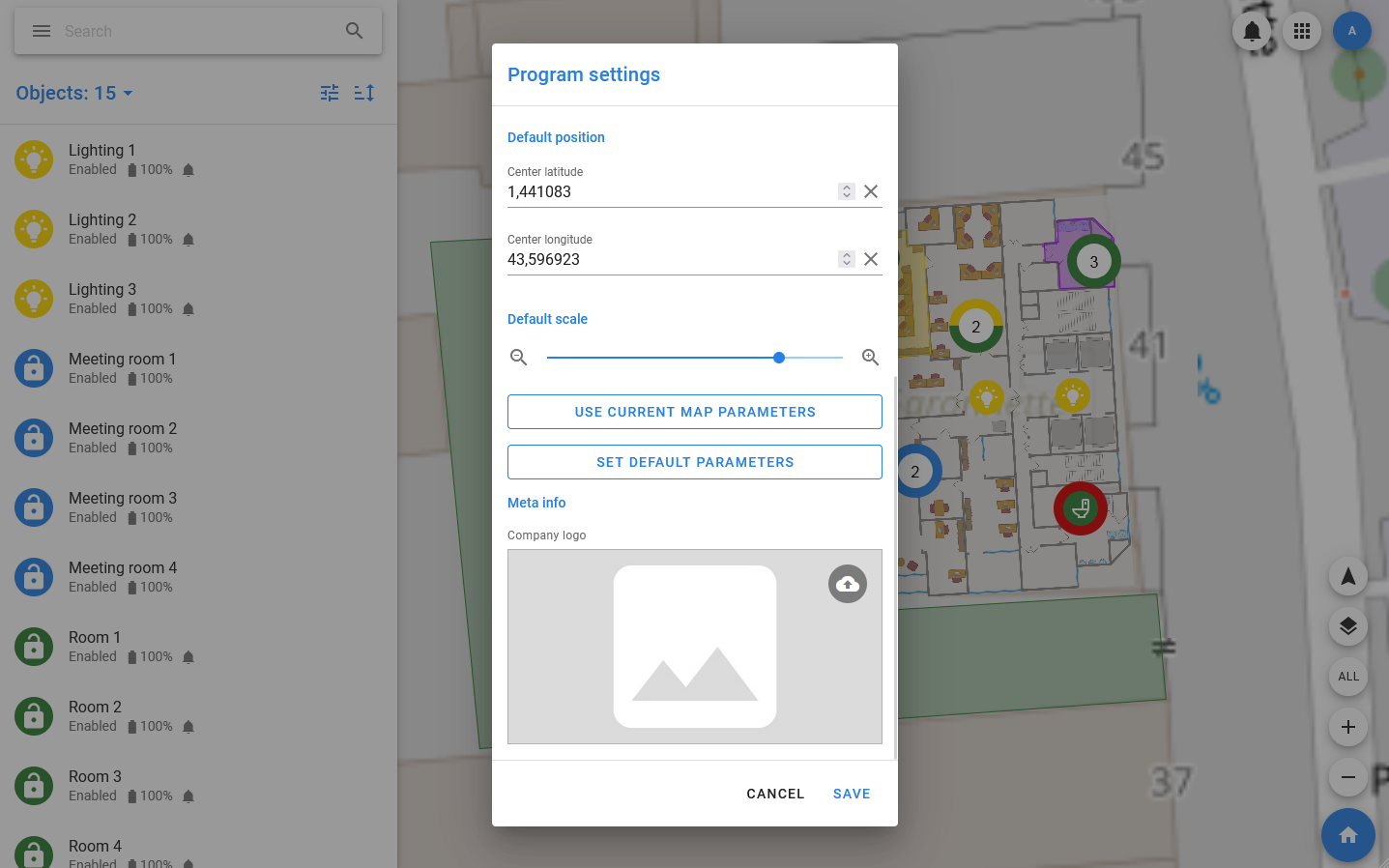
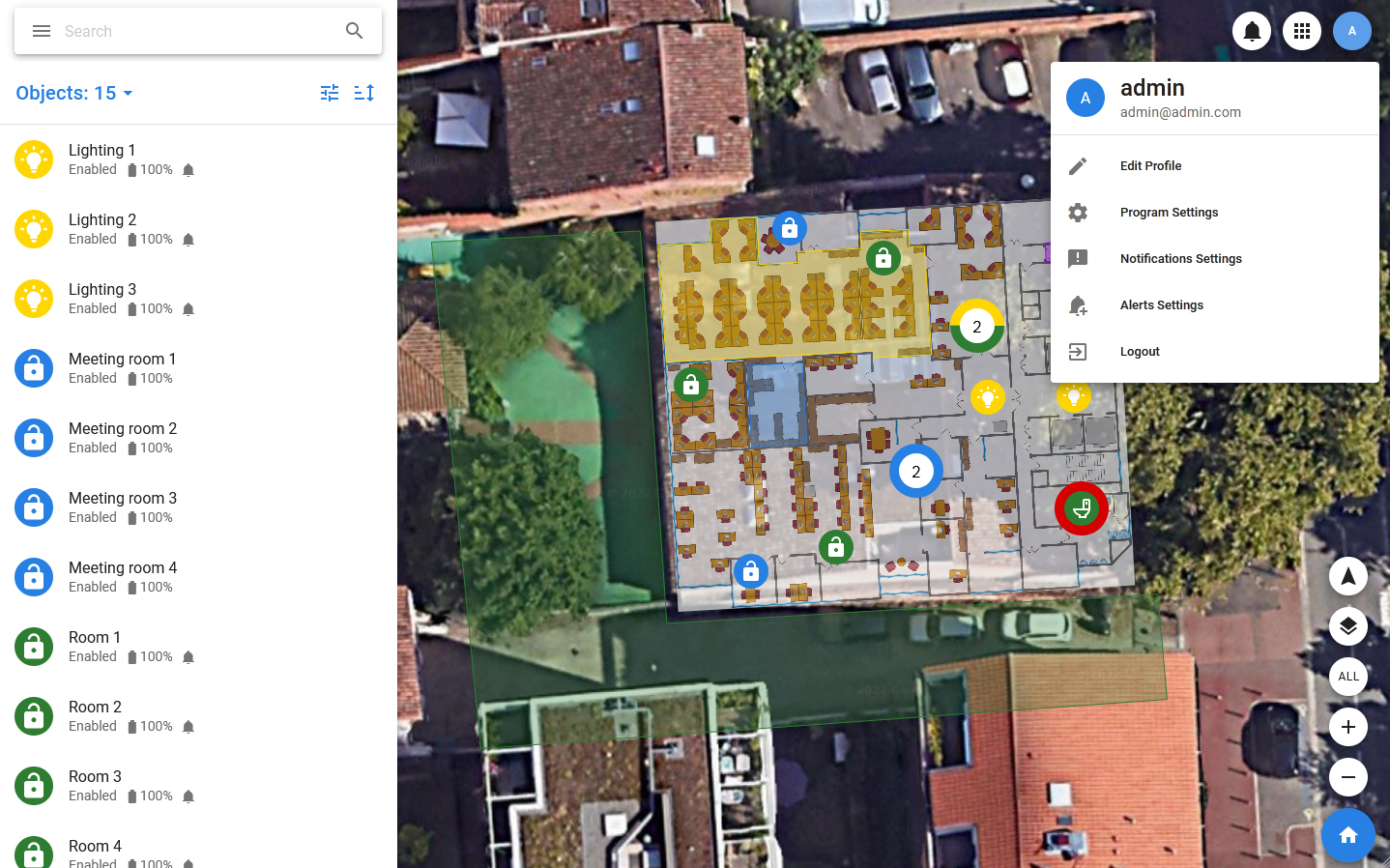
The Pixel Monitor has the ability to customize the interface to simplify work. In the main settings (Settings in the menu), the administrator can set the default settings. Also, each user can set their own interface settings that will not affect the work of other users.
You can configure interface parameters such as:
- Map Type (No Map, Open Street Map, Satellite Map)
- Default map coordinate is the coordinate that will be placed in the center of the screen when you log in to the app and press the Home button.
- Default map scale is the scale that will be applied when you log in to the app or when you click on the Home button.
- Size of objects on map — determines which type of icons will be used to display objects. By default, objects are displayed large, but a small size option and a dot mode are also available. In dot mode, only small colored circles without icons are displayed.
- Size of object cards on map — this setting determines how the cards with information about objects that open on the map when the cursor hovers over the object should look. In large mode, the image of the object will be large.