User Interface Tracknet
Overview
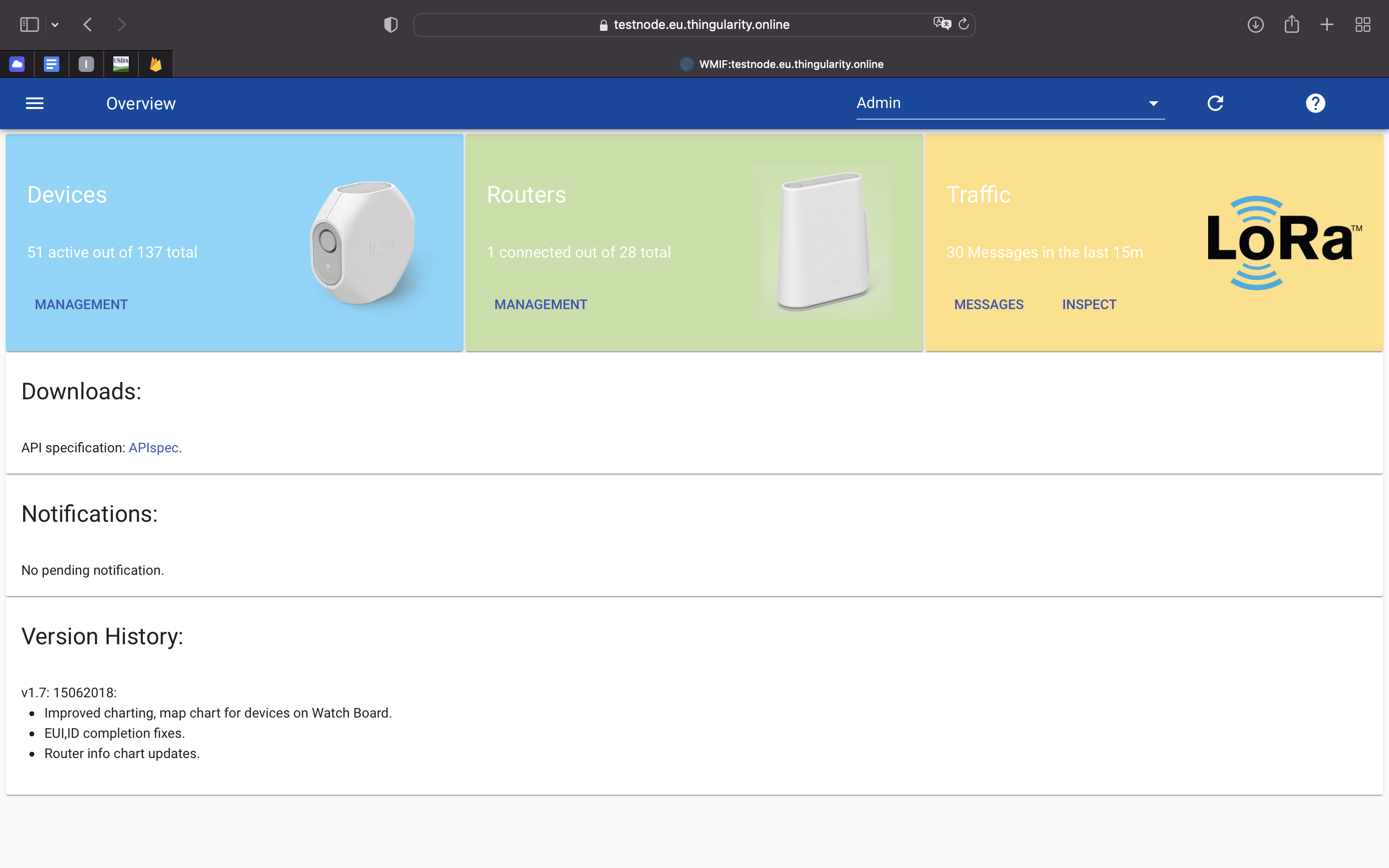
The WMIF implements the WEB management interface for the TrackNet TrackCentral network server. WMIF opens with the Overview board. The menu at the top left allows to switch to the other boards: - Management Board: Manage routers and devices. Administators may manage accounts, users and system. - Live Board: Inspect incoming traffic. - Watch Board: Select router/devices and inspect traffic and events in detail. - Devlet Board: Run parser on incoming traffic and visualize messages. - Settings: Edit settings.
At the top right, an administrator may switch the account to scope the presented information. The 'refresh' button allows to refresh the state of the various boards and panels whenever required. The following discuesses various general aspects of the UI:
Persistent Settings
Many settings are stored locally and persistently in the browser and are reloaded from the UI on the next login or reload of the page. This includes for instance 'Nunber of Rows' or 'Columns' for many tables.
Device EUI and ID6 Notations
Device EUIs are mostly rendered and parsed in HH-HH-HH-HH-HH-HH-HH-HH notation. Router and other system IDs (internally unsigned 64 bit integers) are typically rendered in ID6 notation. Examples:
| HEX=0x1 | DEC=1 | ID6=::1 | MAC=00:00:00:00:00:01 |
| HEX=0x20058A0CB010000 | DEC=144212635699707904 | ID6=200:58a0:cb01:0 | MAC=58:A0:CB:01:00:00 |
| HEX=0x1000000000000 | DEC=281474976710656 | EUI=00-01-00-00-00-00-00-00 | ID6=1:: |
| HEX=0xC000000000001 | DEC=3377699720527873 | EUI=00-0C-00-00-00-00-00-01 | ID6=c::1 |
| HEX=0x58A0CB0000400000 | DEC=6386327472475996160 | EUI=58-A0-CB-00-00-40-00-00 | ID6=58a0:cb00:40:0 |
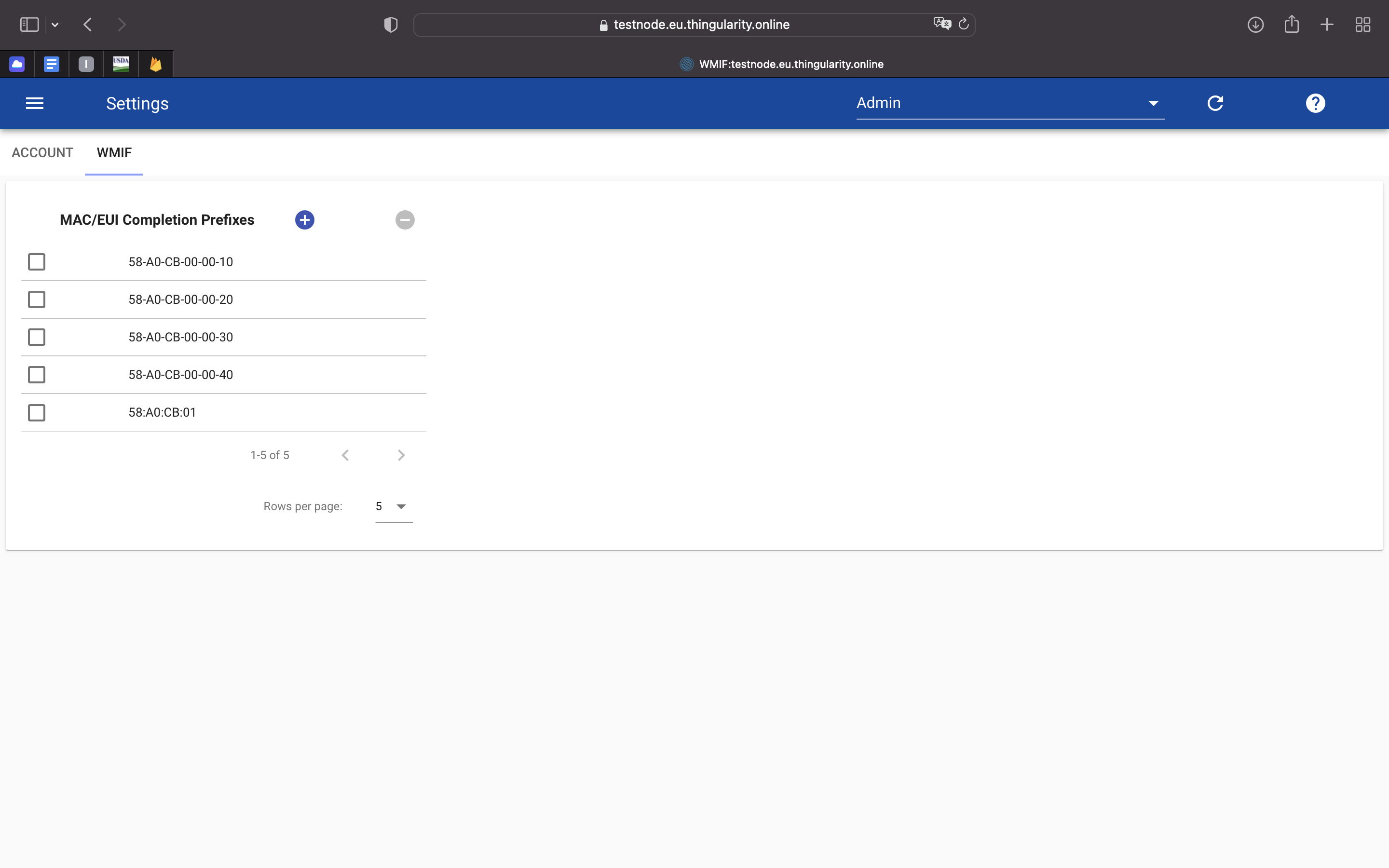
Device EUI and Router ID Completion Various boards or panels allow to find and select a device or router by completion. - The device selector allows to search for devices by complete EUI (in '-' notation), by EUI prefix or by EUI suffix (by starting the search mask with '-'). - If a suffix is provided, it is concatendated with all EUI prefixes configured in the Settings board to determine the devices searched on the server. - The router selector allows to search for router by router ID (in partial ID6 notation), by MAC address prefix (in ':' notation) or MAC address suffix (by starting the search mask with ':'). - If a suffix is provided, it is concatendated with all MAC address prefixes configured in the Settings board to determine the routers searched on the server.
Management
Devices
Search, add and remove devices. The devices board is organized in three tabs:
Finder Tab
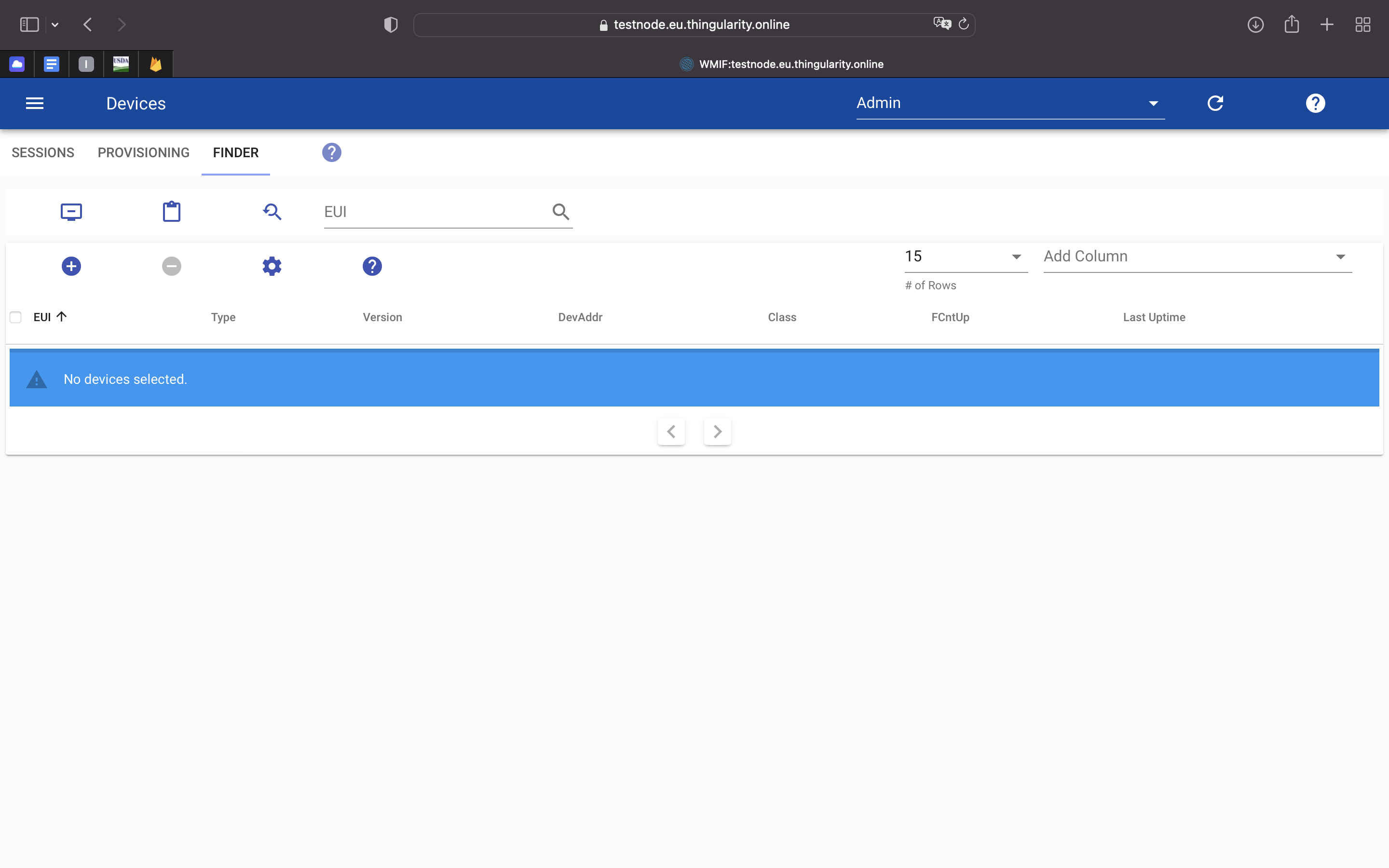
Finder Tab - to find and select devices found on the server. Selected devices can be inspected and/or removed. New devices, ABP or OTAA, can be added to the server and are added to the board.
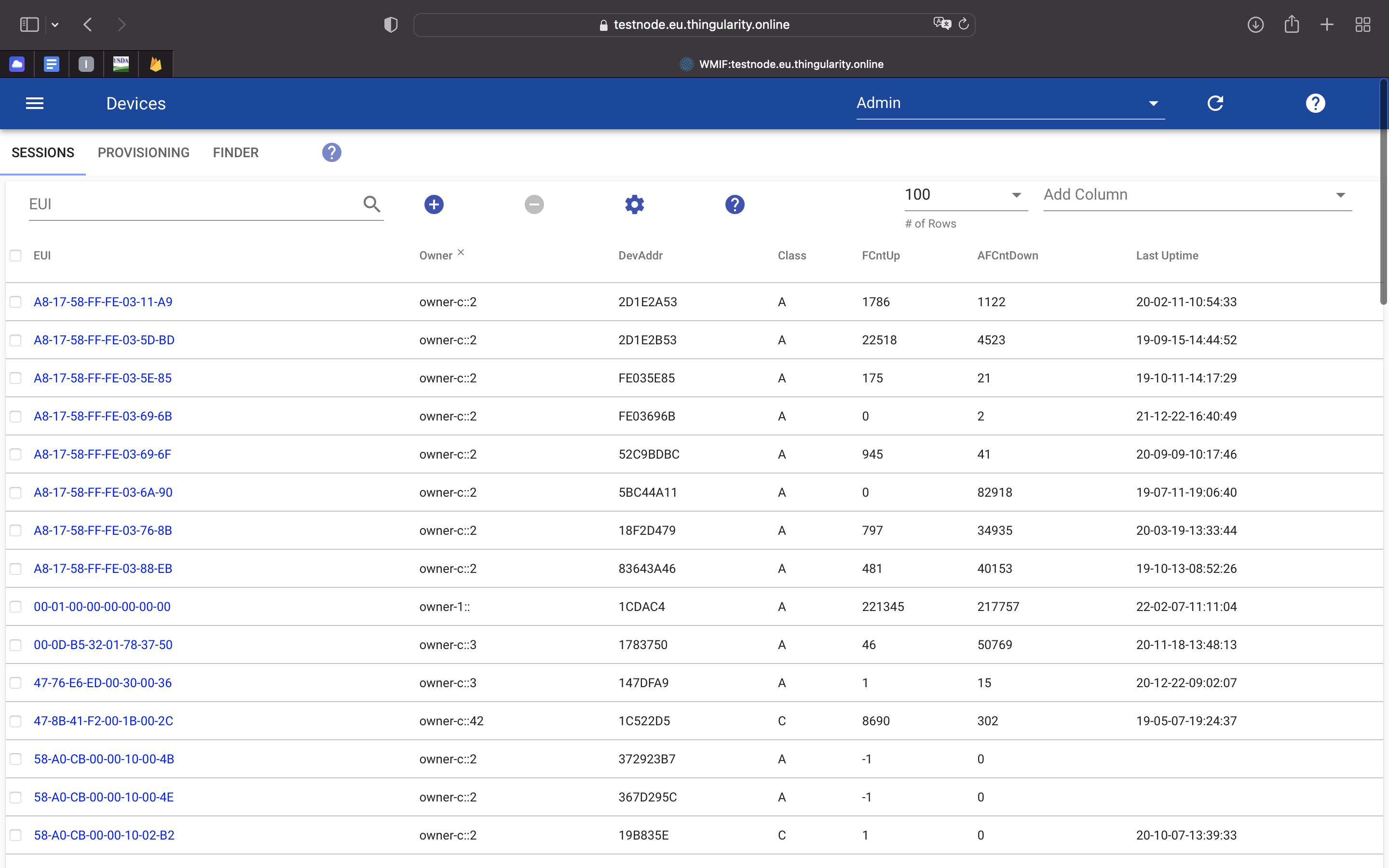
Sessions Tab
Sessions Tab - to search and walk through active devices. Active devices are ABP devices or devices which have joined and sent up data. Add new ABP devices to the set of active devices or remove selected, active devices.
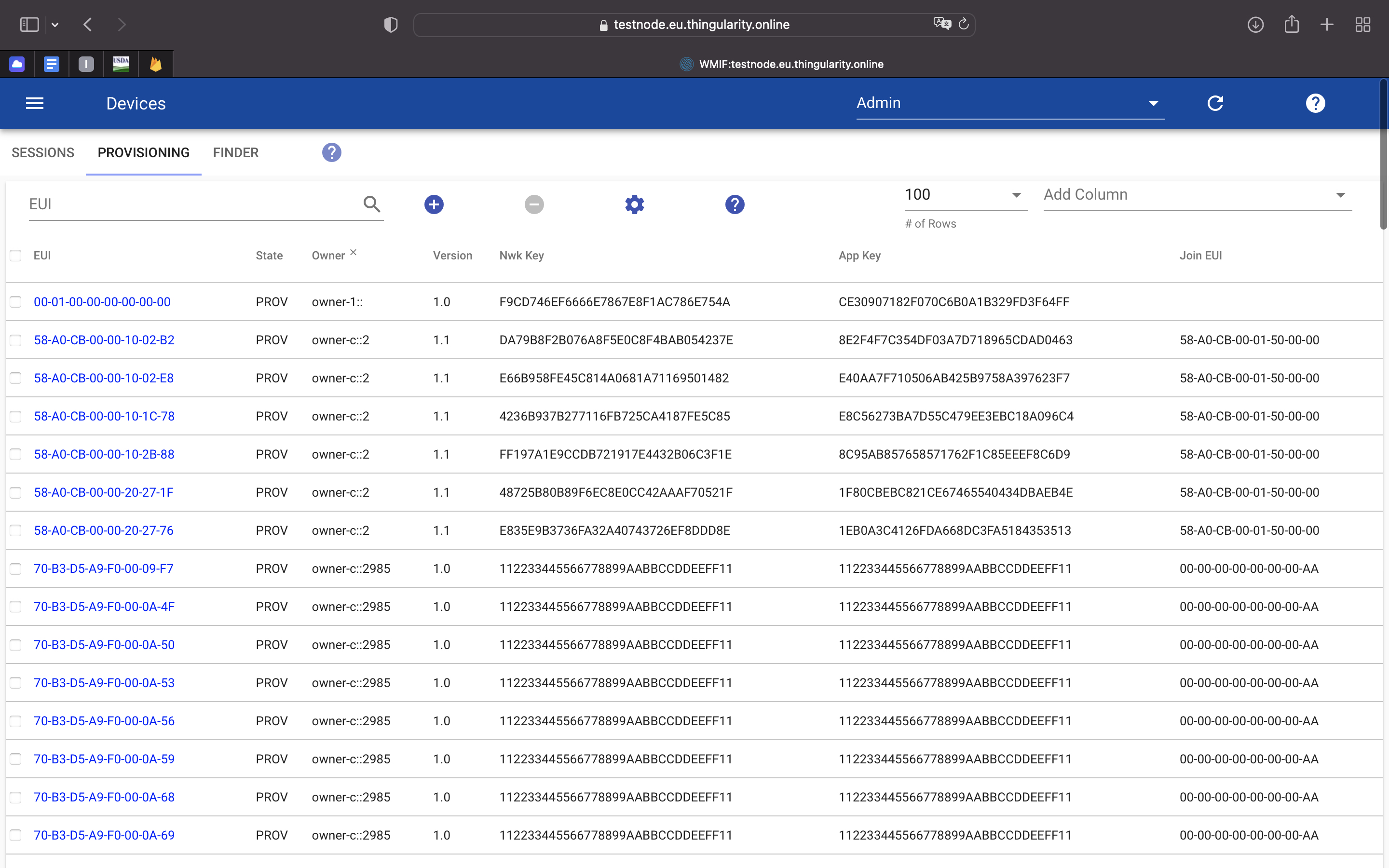
Provisioned Tab
Provisioned Tab to search and walk through OTAA devices. Add and remove OTAA devices. The OTAA devices may have joined or not joined the network already.
Routers
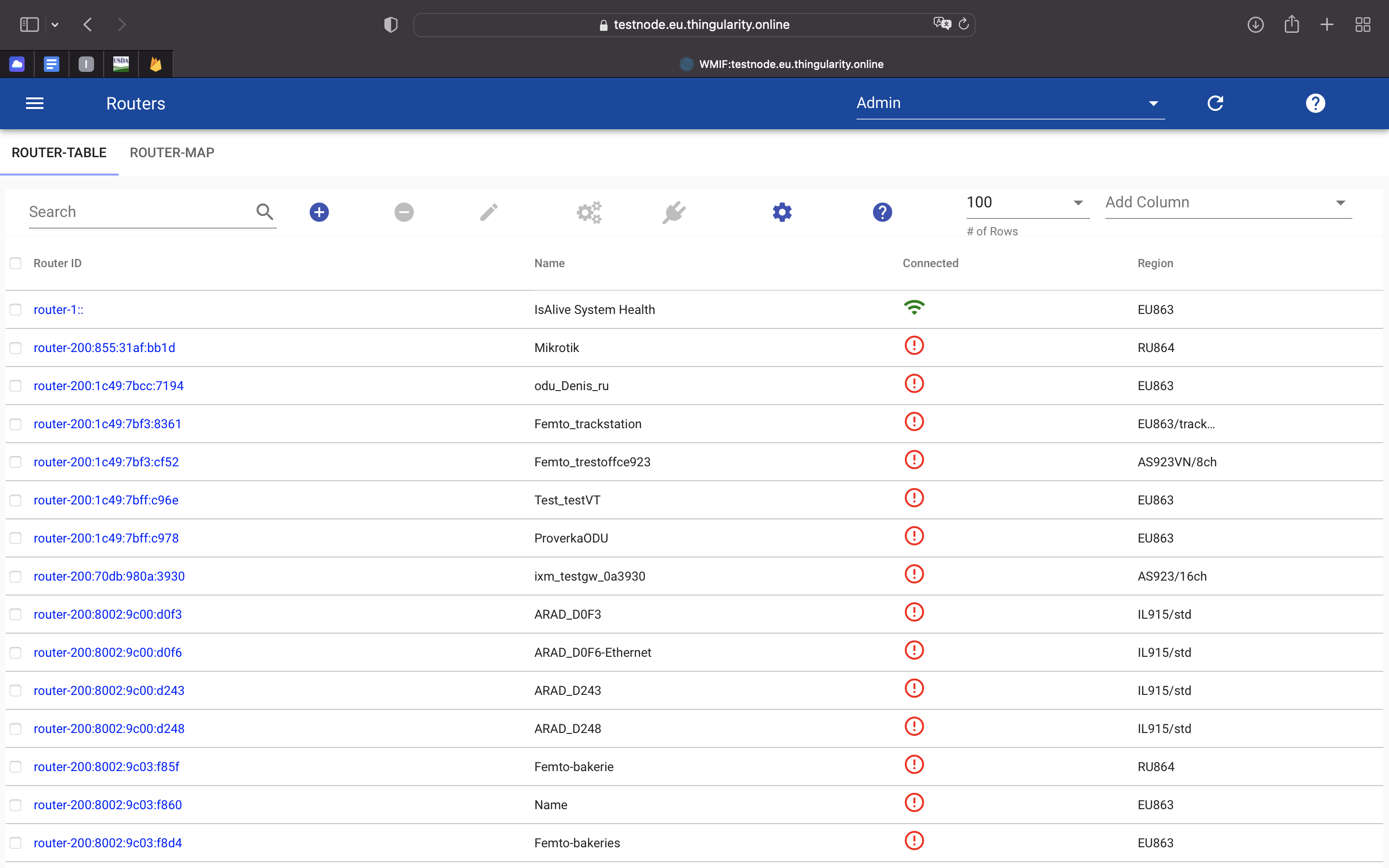
Router Table
Search router by router ID, MAC address or name in search field and select one of the listed routers to view that router in the table.
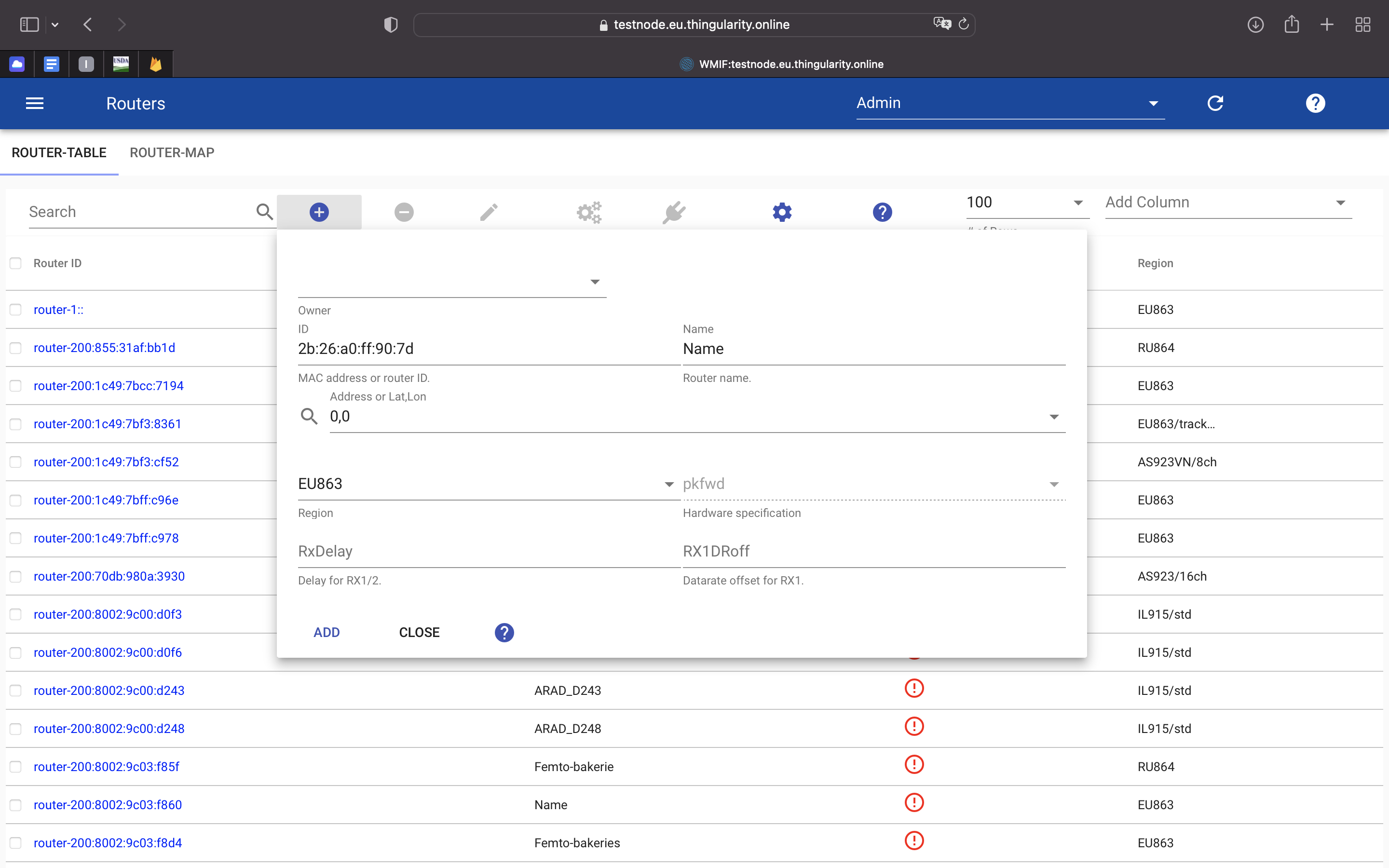
Click on '+' to add router.
Select router in table and click on '-' to remove router.
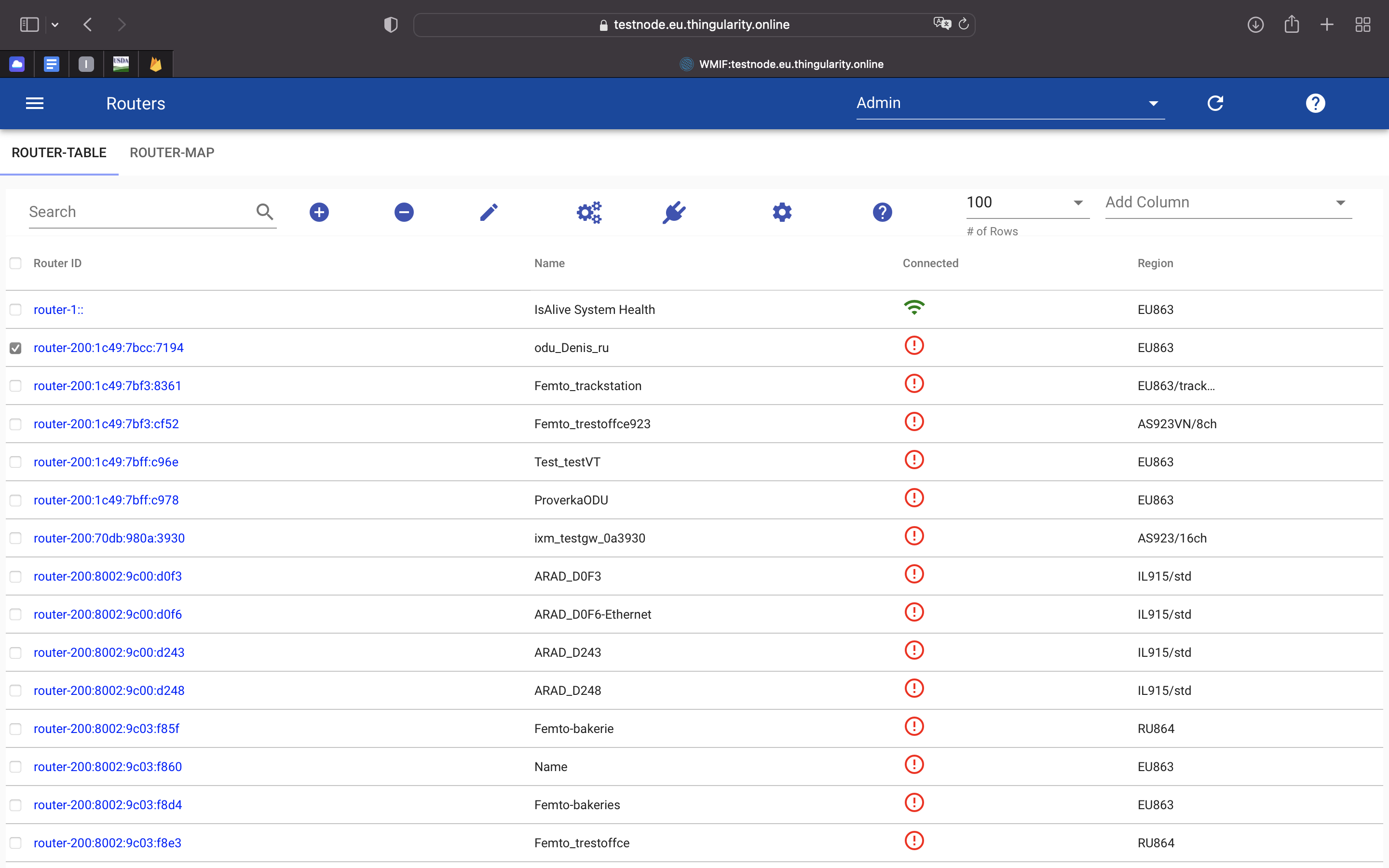
Select router in table and click on 'edit' to edit router name and position.
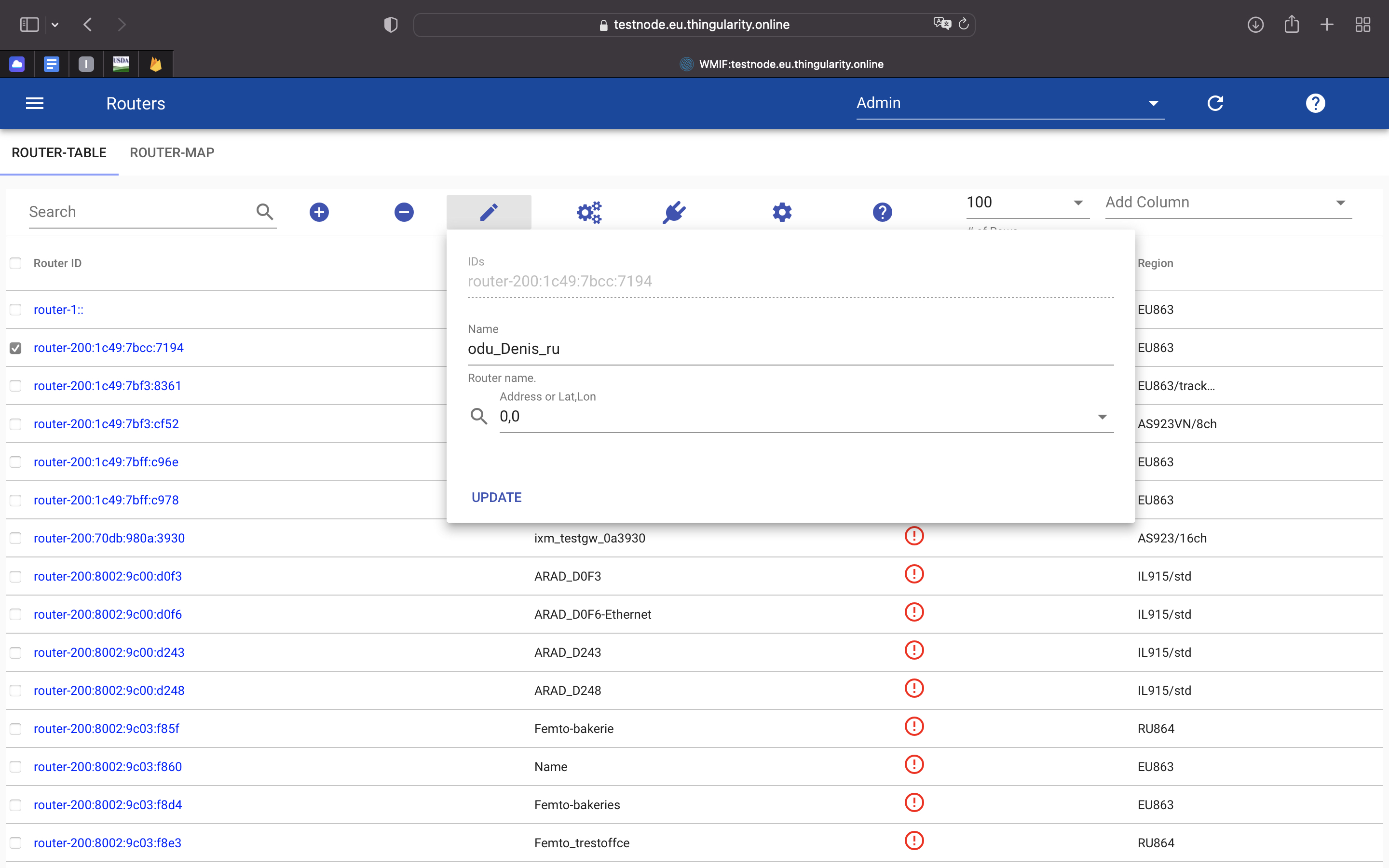
Select router in table and click on 'restart' to restart TrackStation.
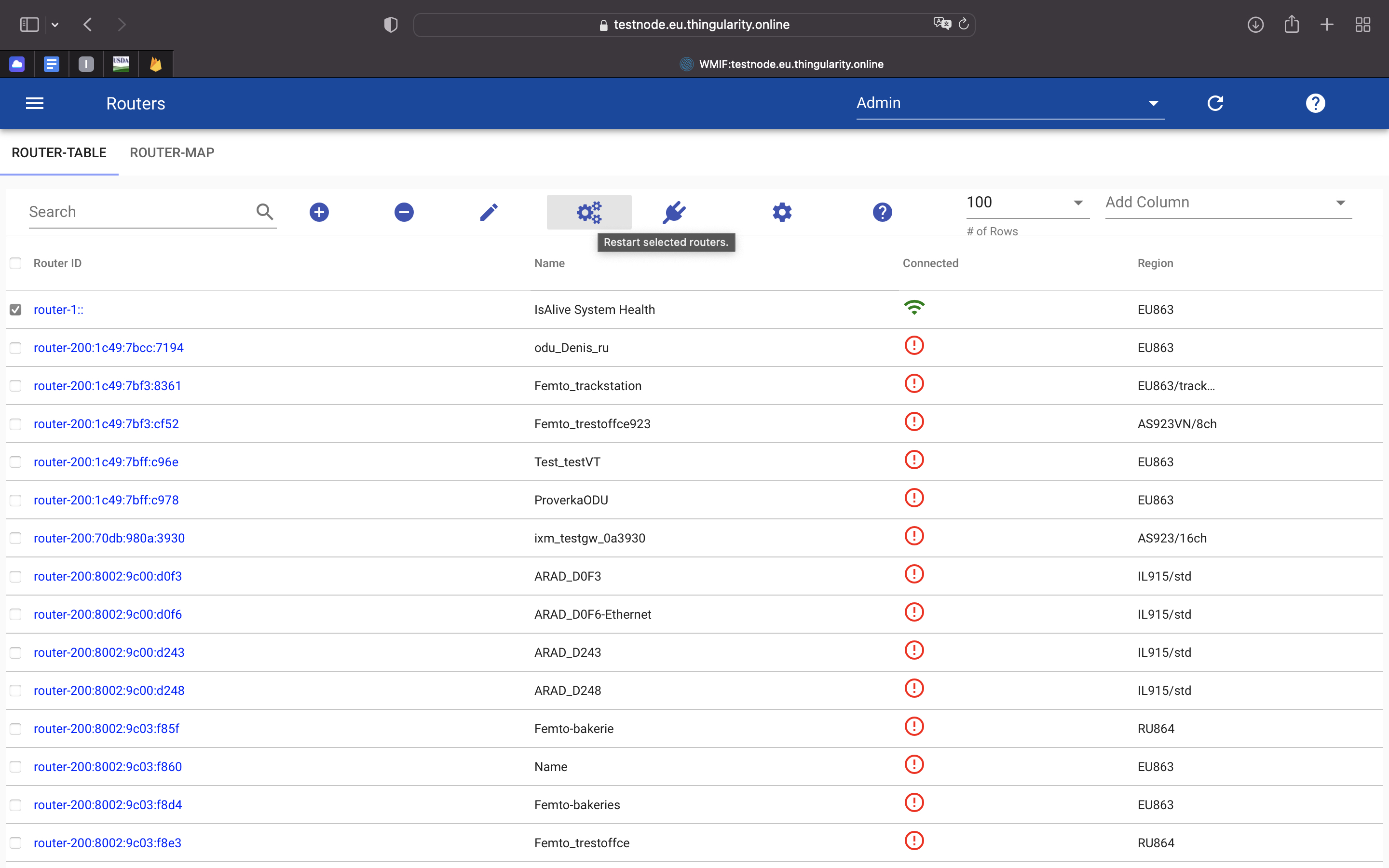
Click on row in table to expand the routerinfo and to view the following tabs.
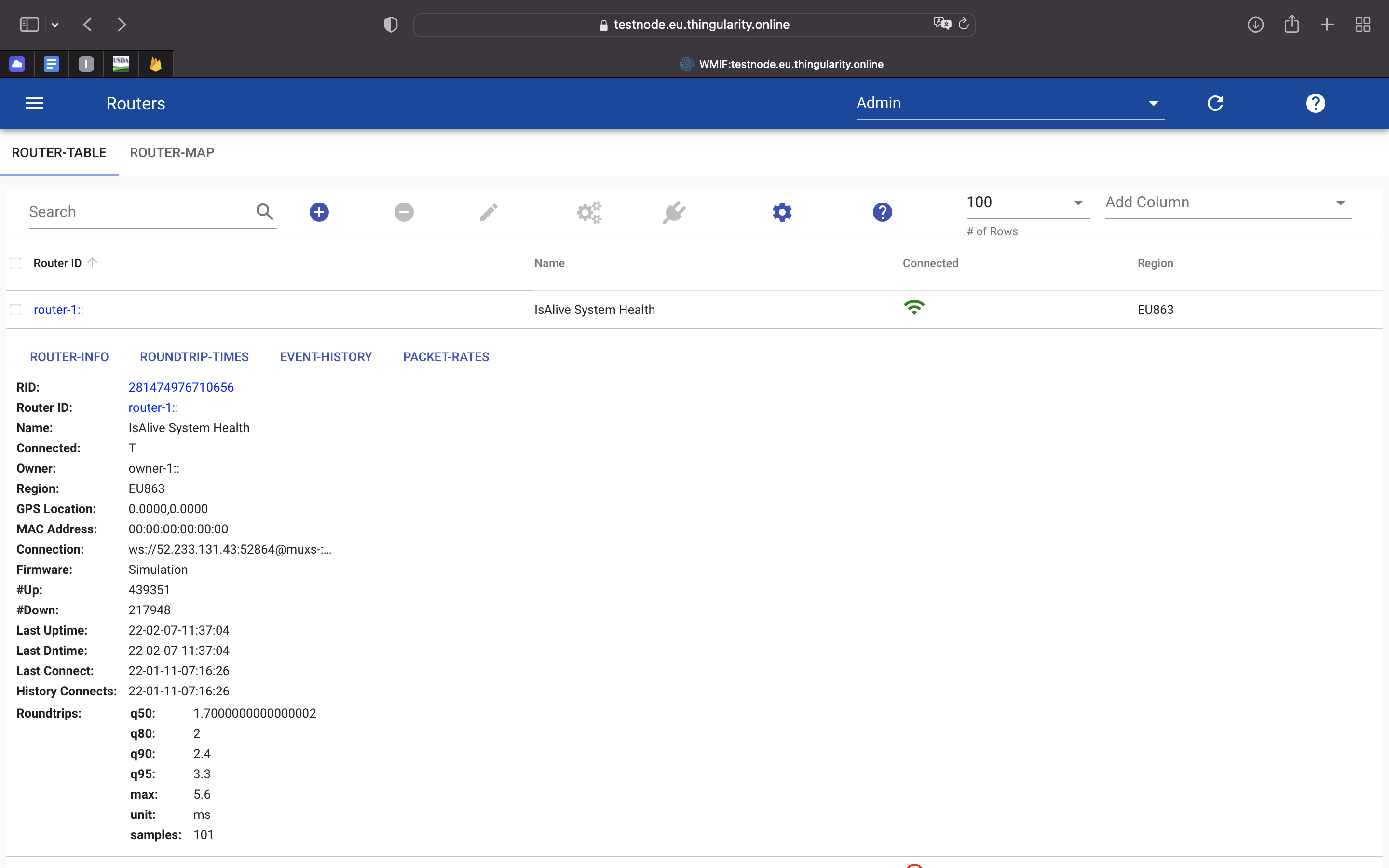
- Router Info: Basic information fields for selected router.
- CUPS Info: Optional information from gateway management system CUPS for this router.
- Roundtrip-Times: Roundtrip measurement times and history for this router.
- Event-History: Event history for this router.
- Packet-Rates: Up-/Down-link packet rates.
- Spectrum-Scan: Dependent on router/formware, Spectrum-Scan feature.
Select names of the columns on the right to always show in table.
Click on settings in toolbar to change format options for router details.
Router Map
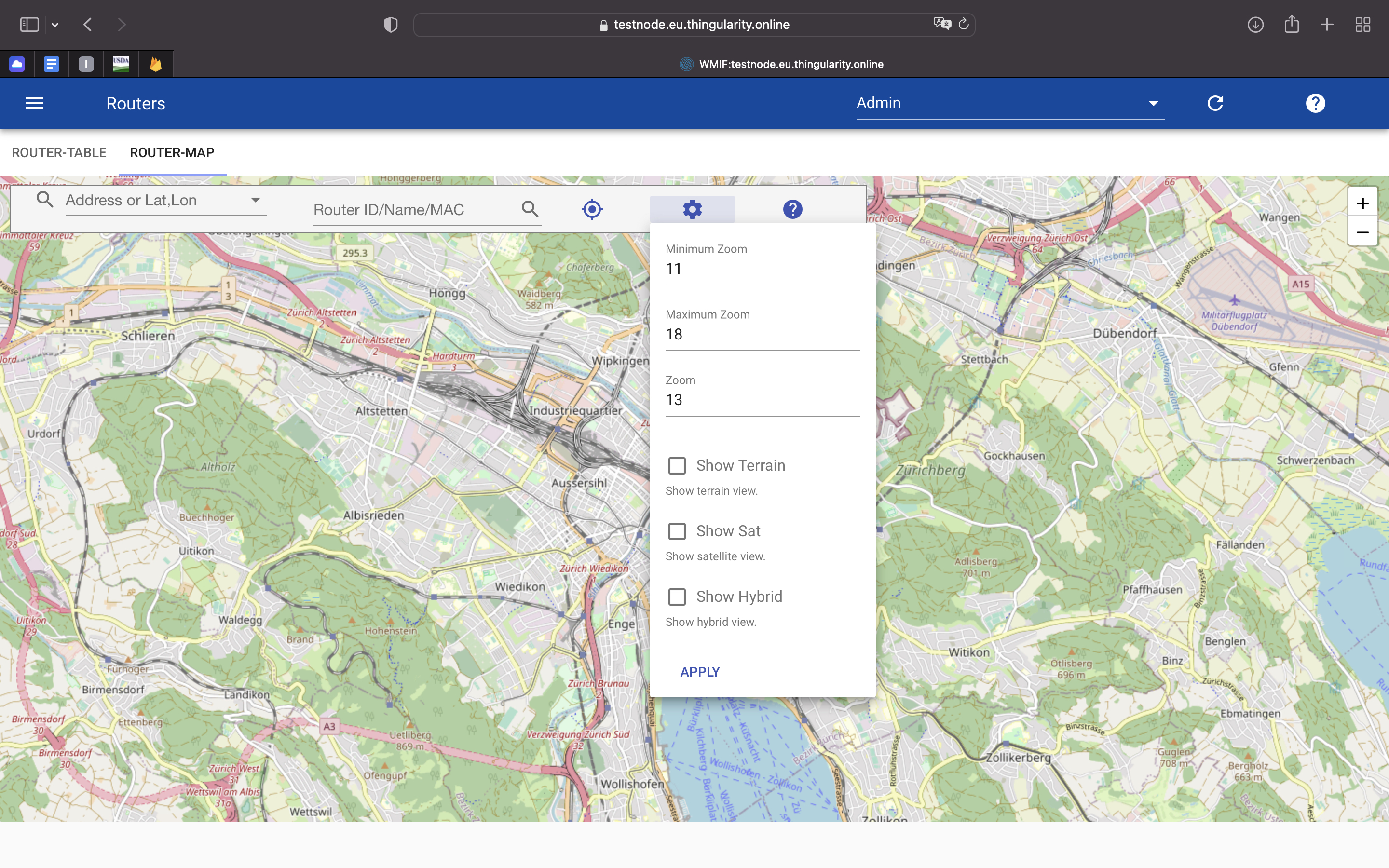
Enter address to center map at specified location. Type ahead router ID/MAC/name to search for router and show selected router on map. Note that the location of the router had to be provisioned before. Click on router symbol on map to view router details. Add routers by double-click on map and submitting the form. Move router by dragging router icon.
Owners
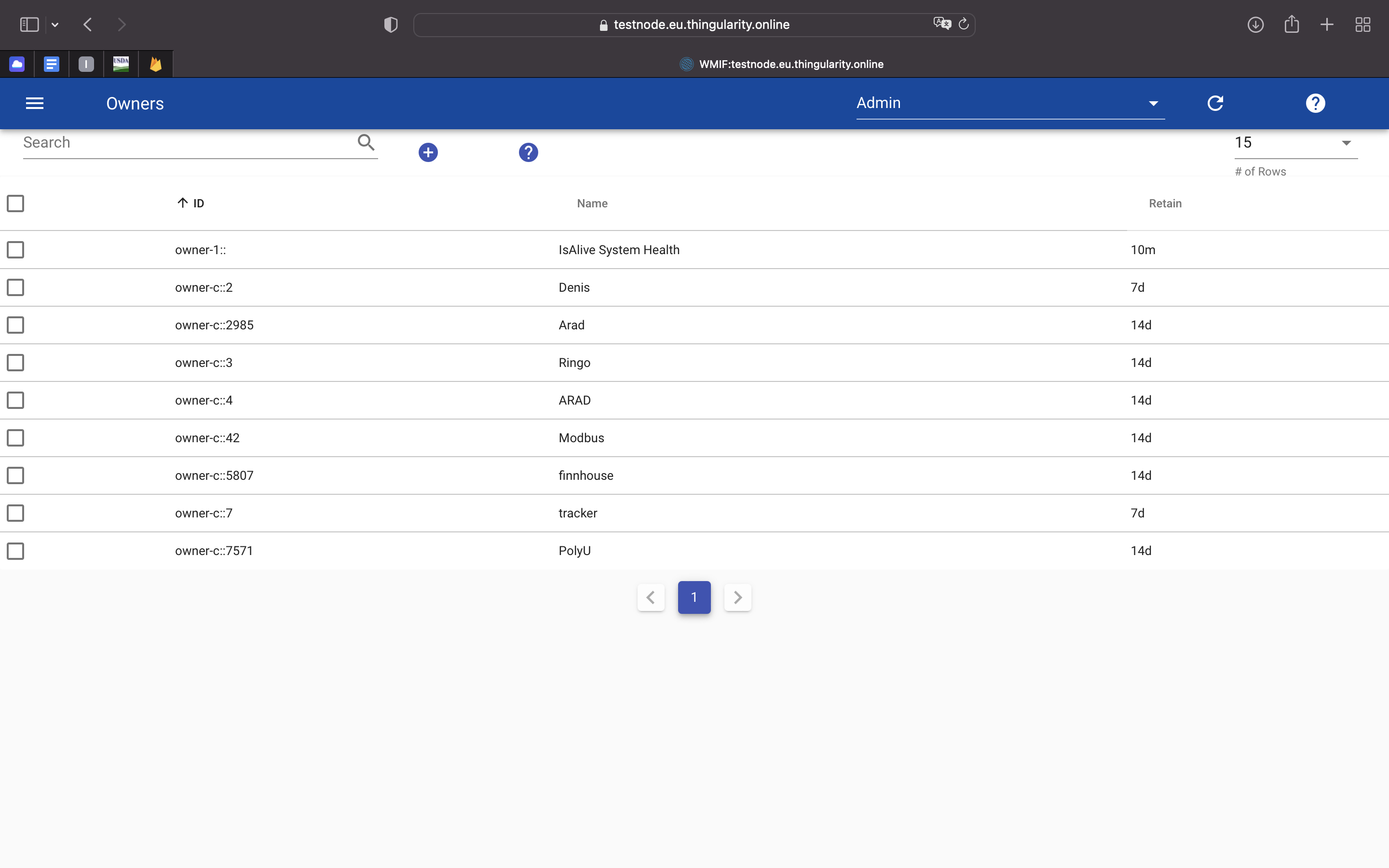
This table lists the owner accounts on the network server. Use + to add an owner. Removing an owner requires command line use for now.
Users
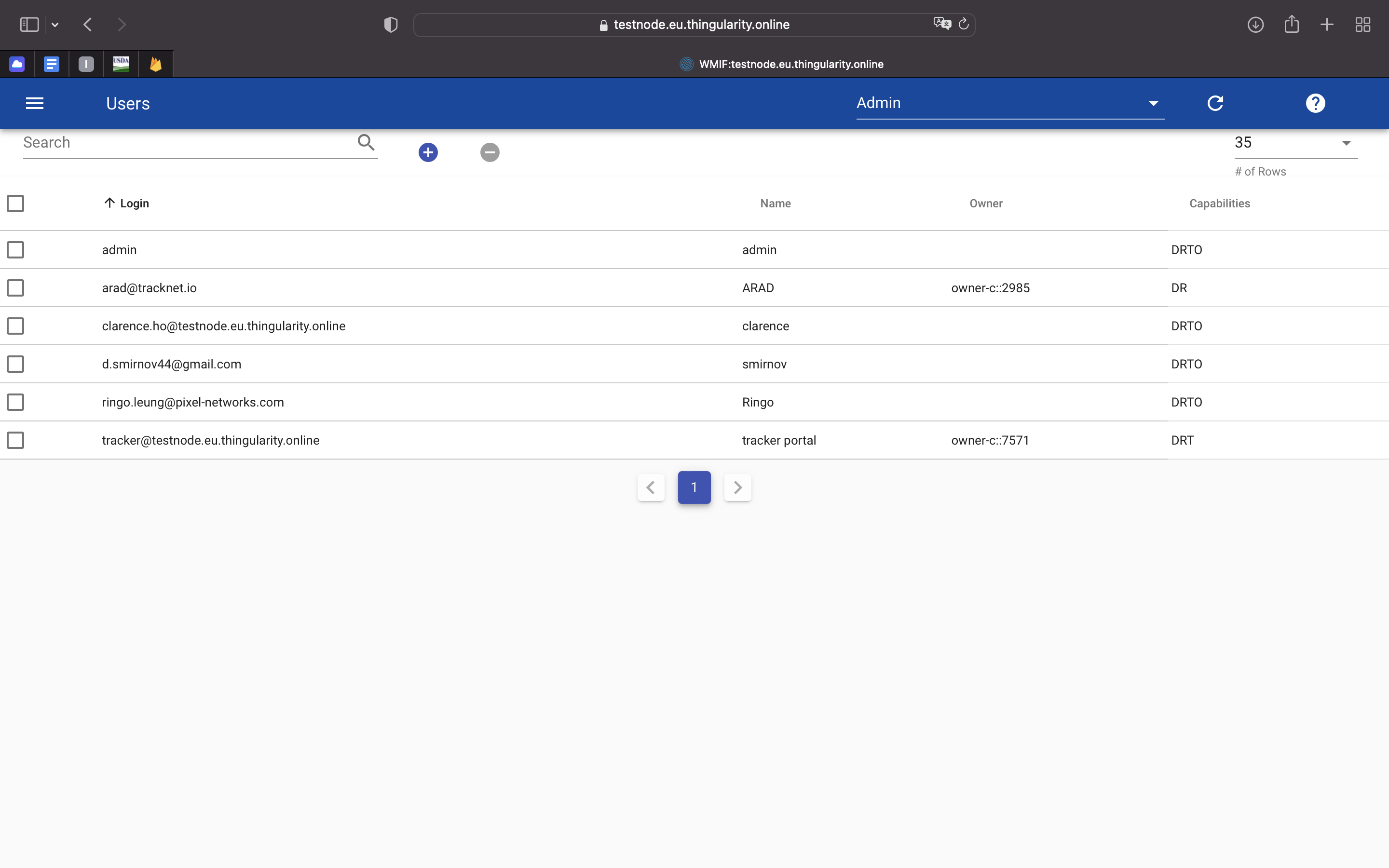
A table of users of the web interface. Here you can create or delete users, manage access permissions for viewing and adding / deleting devices. As well as assign the owner to a specific user.
Credentials
- Certificates
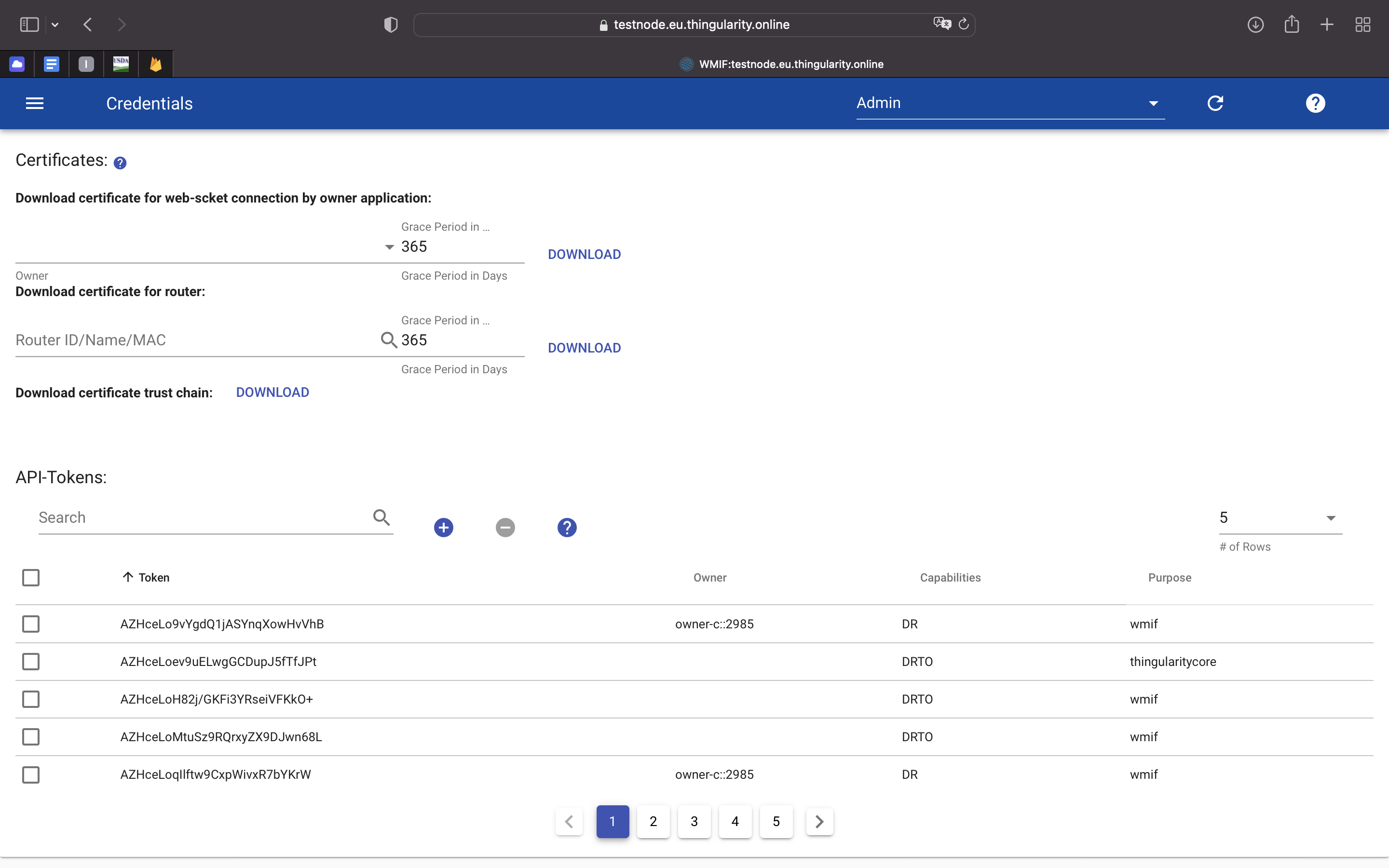
Router and Web-socket connections are secured by TLS between network server and back end applications and between routers and network server. Client side certificates are required for the establishment of secure connections and the network server thus provides a private CA for client certifcate management. This panel allows to request certificates for back end applications and routers of an owner and to download the certificate trust chain. This should then allows for configuring a back end application to setup a secured connection to the network server.
Note that TLS might not be enabled and required on test and development servers.
- API-Tokens
Tokens are required to access the WMIF and/or REST API. A WMIF user with login and password is associated with a token which allows him to use the WMIF and REST API interfaces. Tokens are associated with an owner account and capabilities and thus accordingly restrict access to devices and routers. The capabilities include especially:
- D: token holder may provision devices.
- R: token holder may provision routers.
- T: token holder may provision/modify tokens (required for REST/WMIF access).
- O: utoken holder may impersonate other owners.
- An administrator token requires DRTO.
- The purpose field may contain a human readable name for the token and its purpose.
- The panel allows to list, search, add or remove tokens.
Events
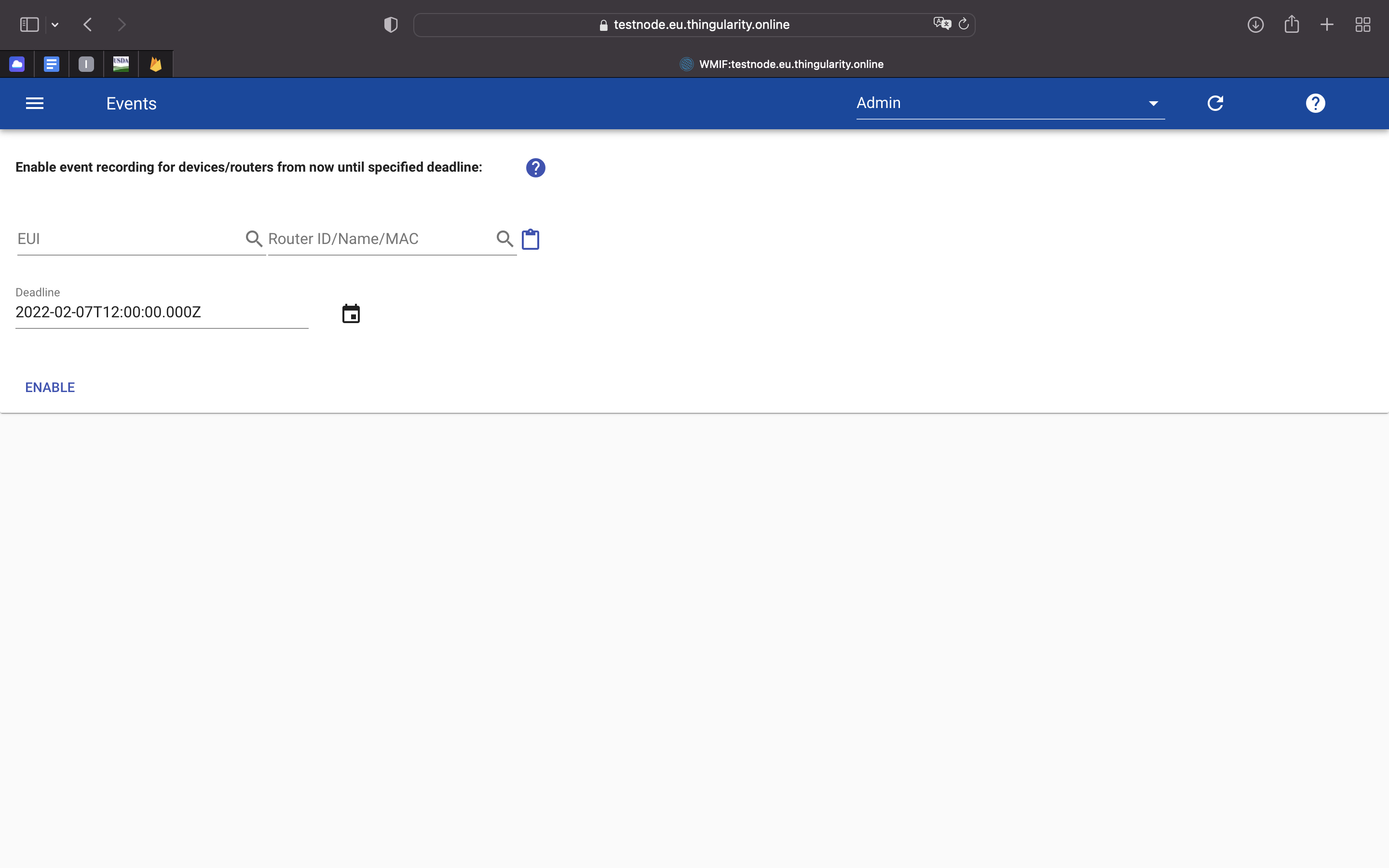
The network server does not record by default all events related to a device or router. If it is necessary to debug in detail the behaviour of a device, it might be useful to log the events for a longer timeframe and inspect the events in the watchboard for this particular device afterwards. To enable event recording, select the devices and routers and specify a deadline. Then click 'Enable'. Events for these entities are then recorded until the deadline expires. Note that the user interface allows only for one active set of devices and routers per user. Any active event recording is stopped once a new set is enabled. Recorded events can be analyzed in the Watch-Board.
Alarming
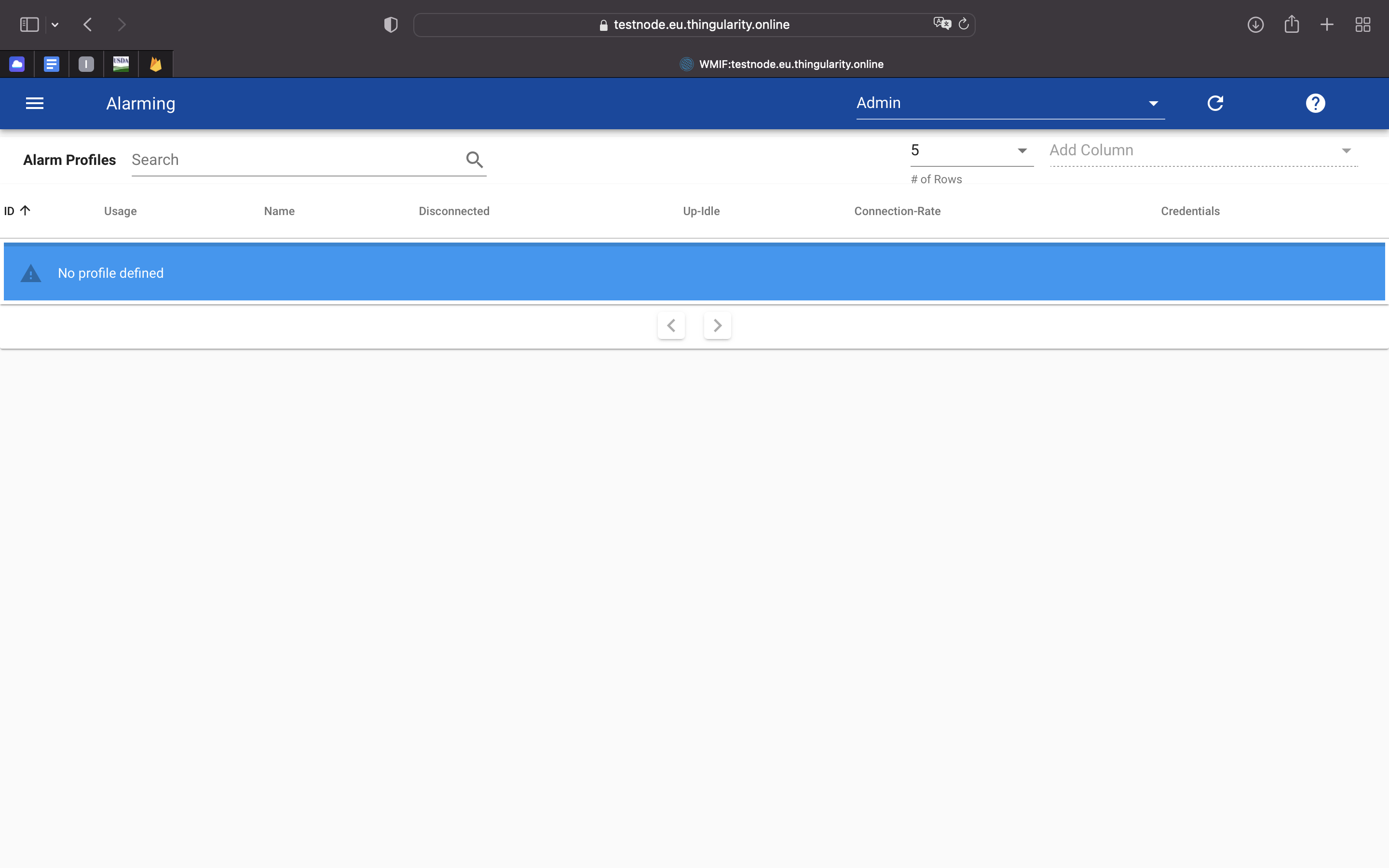
Alarming - a list of devices in the Alarming status.
Logs
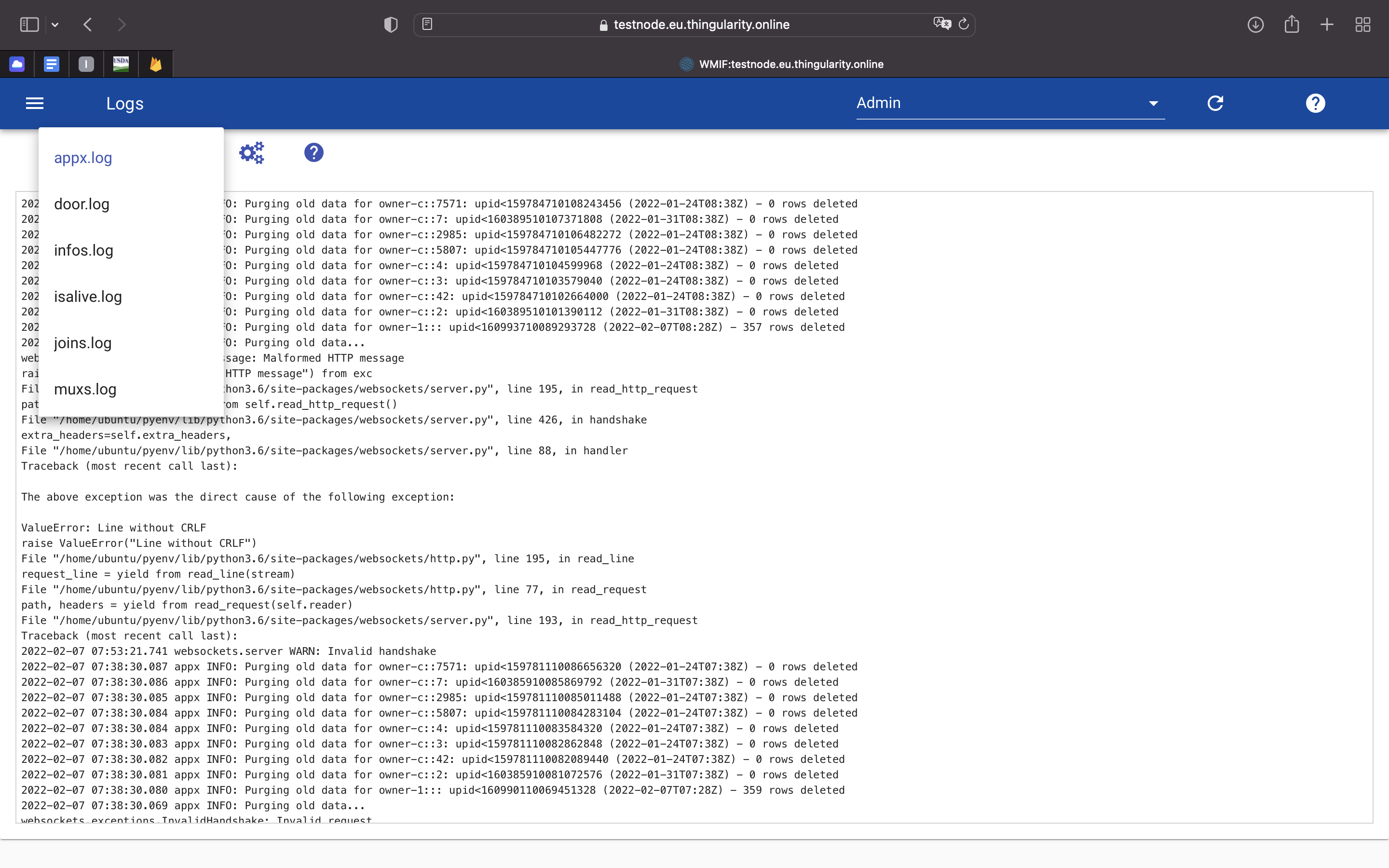
Pick the log file of interest in the select box: - joins.log: Log output of joins process handling OTAA join operations. - appx.log: Log output of appx process handling connections by back end applications. - infos.log: Log output of infos process providing info service for routers and back end applications. - isalive.log: Log output of isalive process checking health of system. - muxs.log: Log output of muxs process being connection entry point of routers. - nwks.log: Log output of nwks process, the network server process manageing device traffic between muxs,appx,door and joins. - door.log: Log output of door process, the downlink orchestrator process. - wmifs.log: Log output of web UI/REST api server. Use the reset button to reset the log monitoring on the server.
Parsers

Parsers can be used in Devlets to parse message payloads of devices before rendering them in the browser. They can also be specified and used by back end applications when connecting to the network server to receive parsed up messages. A parser is written in restricted python and is executed on the server on each message received by a device. A parser must define a function on_lora_message which receives the message as Dict. A parser may return None or a Dict with any key/value pair. Typically, the parser will include at least the upid and device EUI of the original message. A parser may receive messages as described in the TrackCentral backend specification. In case of a devlet, a parser only receives 'upinfo' messages which have the following format:
{
   "msgtype":     "upinfo"
   "DevEui":      EUI64     // device identifier
   "upid":        INT8      // unique message identifier
   "SessID":      INT4      // session identifier
   "FCntUp":      UINT4     // frame counter used by the device
   "FPort":       UINT1     // port number
   "FRMPayload":  HEX*      // up data frame payload (may be empty)
   "DR"           int       // data rate the message was sent with
   "Freq"         int       // frequency the message was sent with
   "region"       str       // region specifier
   "upinfo":     [ UOBJ, .. ]
}
UOBJ = {
   "routerid":   INT8       // identifier of the router having received the frame
   "muxid":      INT8       // internal routing information
   "rssi":       float      // signal strength
   "snr":        float      // signal to noise ratio
   "ArrTime":    float      // arrival time stamp in the de-mux fabric
}
Specify category, name, version and client for the parser. Version must match a 'v' followed by digits. 'client' is optional and may be used to denote the client of that parser.
Messages
Message Traffic
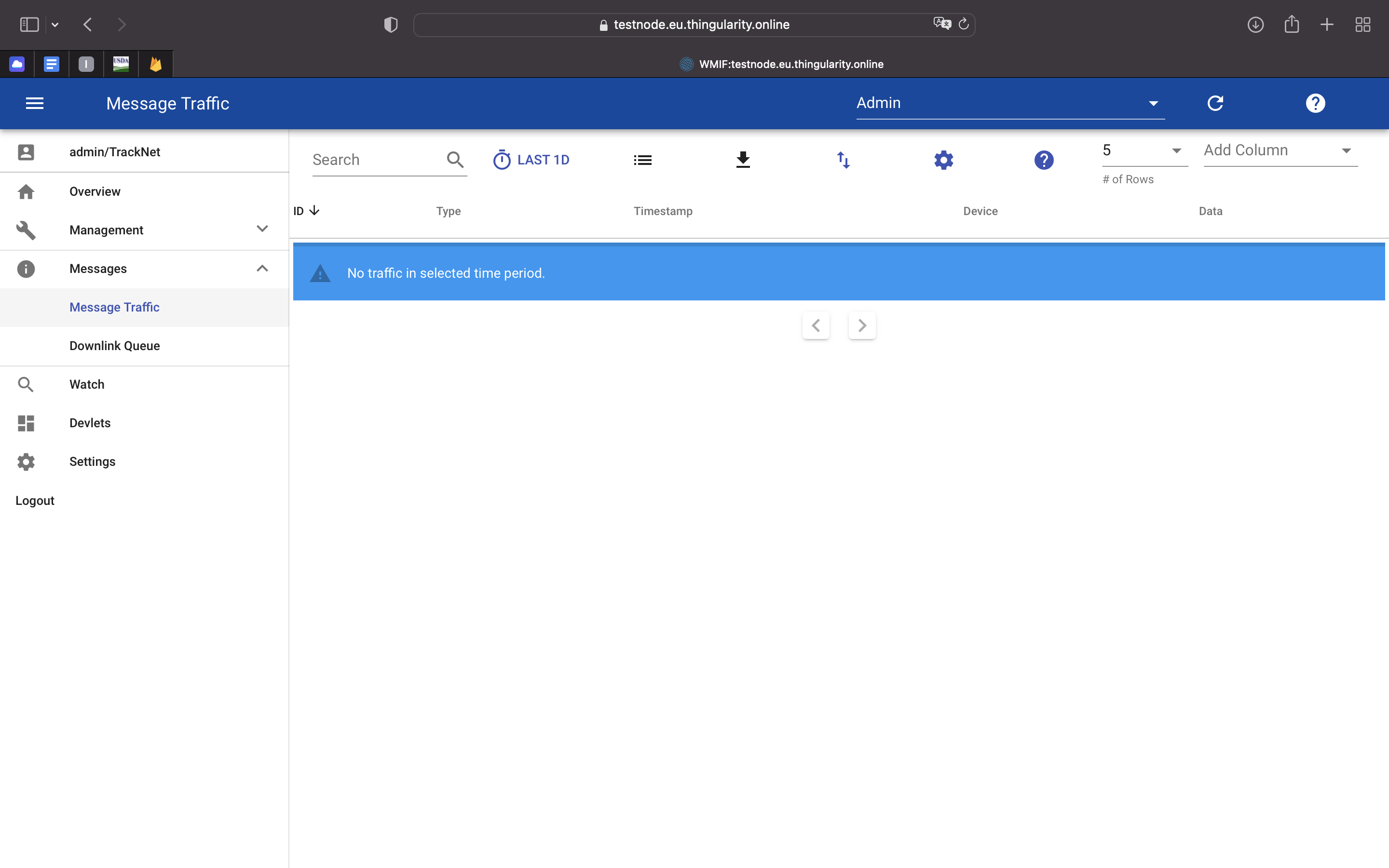
The Traffic Panel pulls device data from the server and renders the messages in a table. The Watch Board allows to limit the traffic to selected routers/devices, the Live Board shows the traffic of all devices in the selected time frame. Click on a row to see all message details. Search for string in traffic table on the left. Note that the search is carried out locally and not on the server. Select time frame and refresh interval in the time selector for messages pulled from server. Limit message types pulled from the server (joining, upinfo..). Specify and enqueue downlink messages. Note that the messages might not be sent immediately, the downlink entry for a device is shown in the device info panels (on Watch Board or Device Management Table). Export all traffic in table to CSV or JSON by clicking the export button. Select names of the columns on the right to always show in table. Click on settings in toolbar to change format options for message details.
Downlink Queue
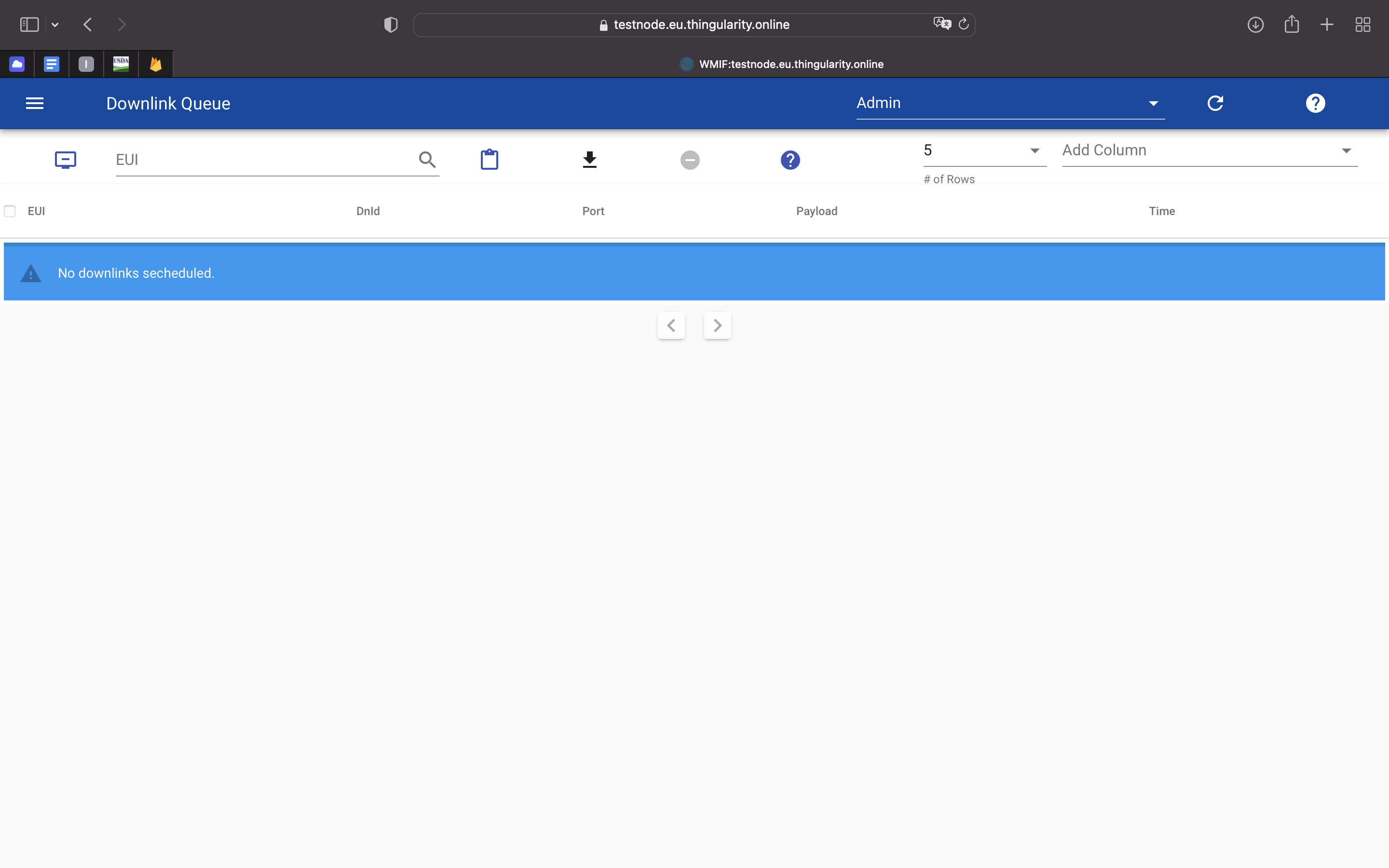
This table shows downlink messages currently queued for the selected devices and/or the associated owner by a user or back end application. The system accepts one message per device, any new queued downlink entry overwrites the currently set message. The toolbar allows to limit the shown messages to the selected devices. It also allows for manually adding a downlink entry although this is best handled by separate back end applications. Entries in the table can be selected and removed. The associated downlink is then removed from the server queue.
Devlets
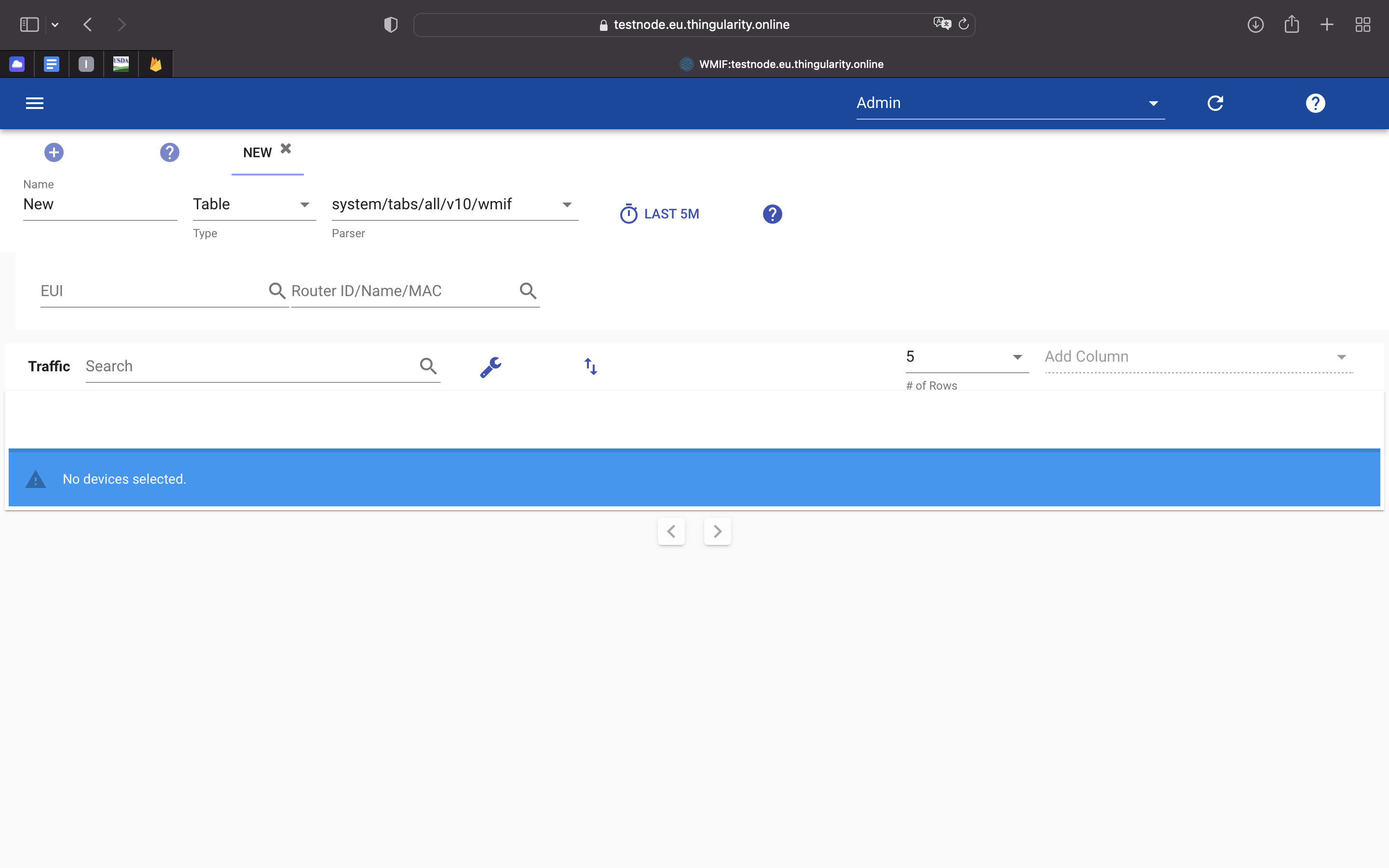
Devlets allow for an application and device specific visualization of data. A devlet integrates a selected set of devices/routers, render type (map or table), selected time frame and a parser (pre-defined or user programmable). When the devlet requests device messages from the server, the parser is executed on each message and its binary payload and returns an device/application specific message. This message is then fed into the devlet visualization (map or table) and rendered. Parsers can be edited by clicking on the edit button and using the parser editor. A devlet can be created by clicking the plus button and editing the following properties: - Edit the devlet name. - Select the devlet type (Table or Map). - Select the devlet parser from the list of available parsers. - Select time frame and refresh options. - Select set of device EUIs and router IDs.
Settings
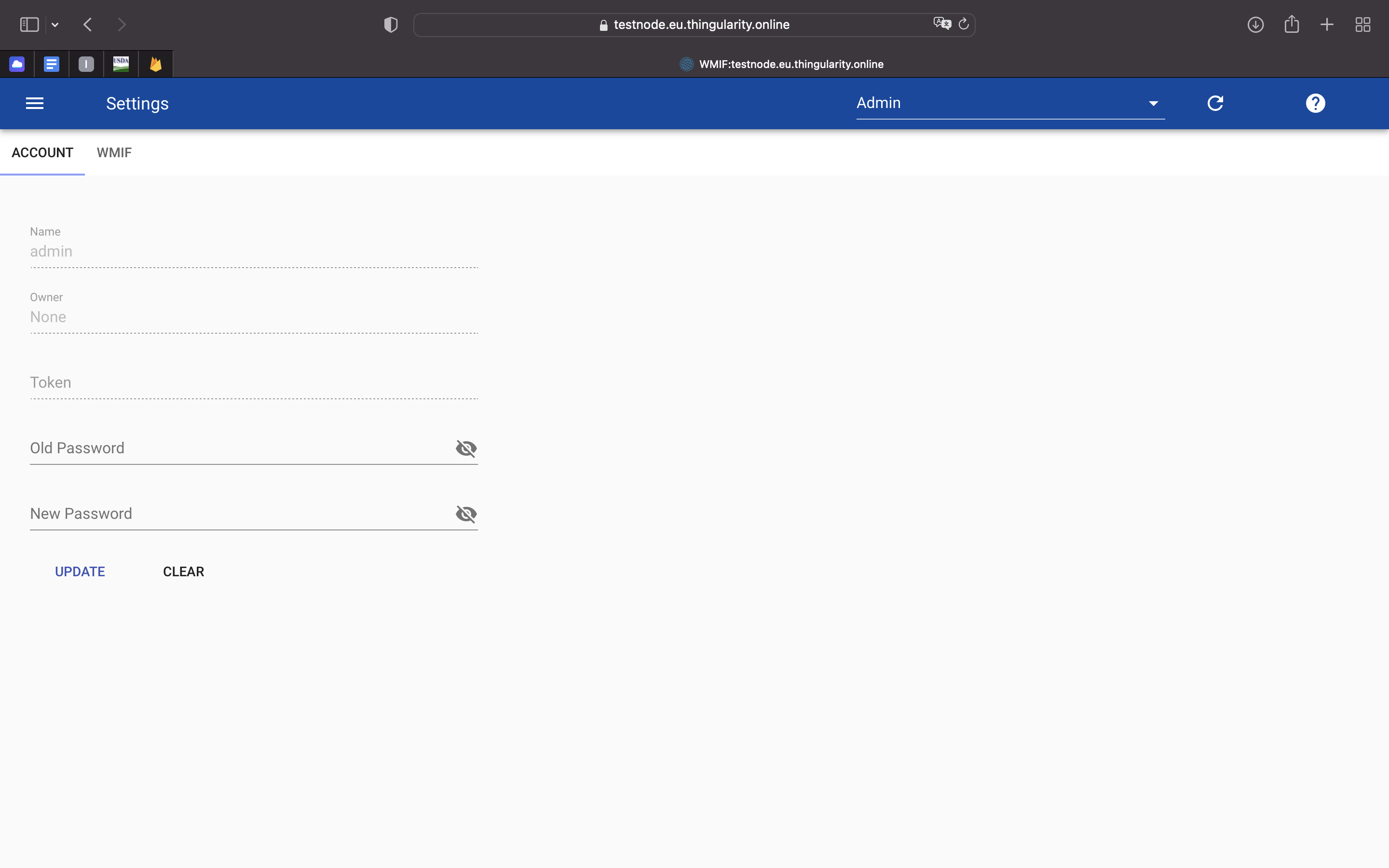
In this section, you can use the password of the current user, as well as set device prefixes on the WMIF tab.