Object types
Objects in PixelMonitor are groups of objects formed with the participation of a special object that uses one of the PixelMonitor data schemas. Each object data schema has a number of mandatory (general) fields, as well as its own individual features that form the type of object.
Object types can be created, modified, and deleted via the PixelMonitor interface by selecting the menu item of the same name (actions require appropriate permissions).
Important
Since each type corresponds to a data schema, changing the type entails changing all objects that use this type. With a large number of objects, this operation can put a significant load on the system. Also, changing the data schema can cause incorrect operation of certain subsystems and interpretation of both current and historical data.
Any data schema of PixelMonitor objects contains descriptions of such properties as statuses, current color, current and default state, current coordinate, address, altitude.
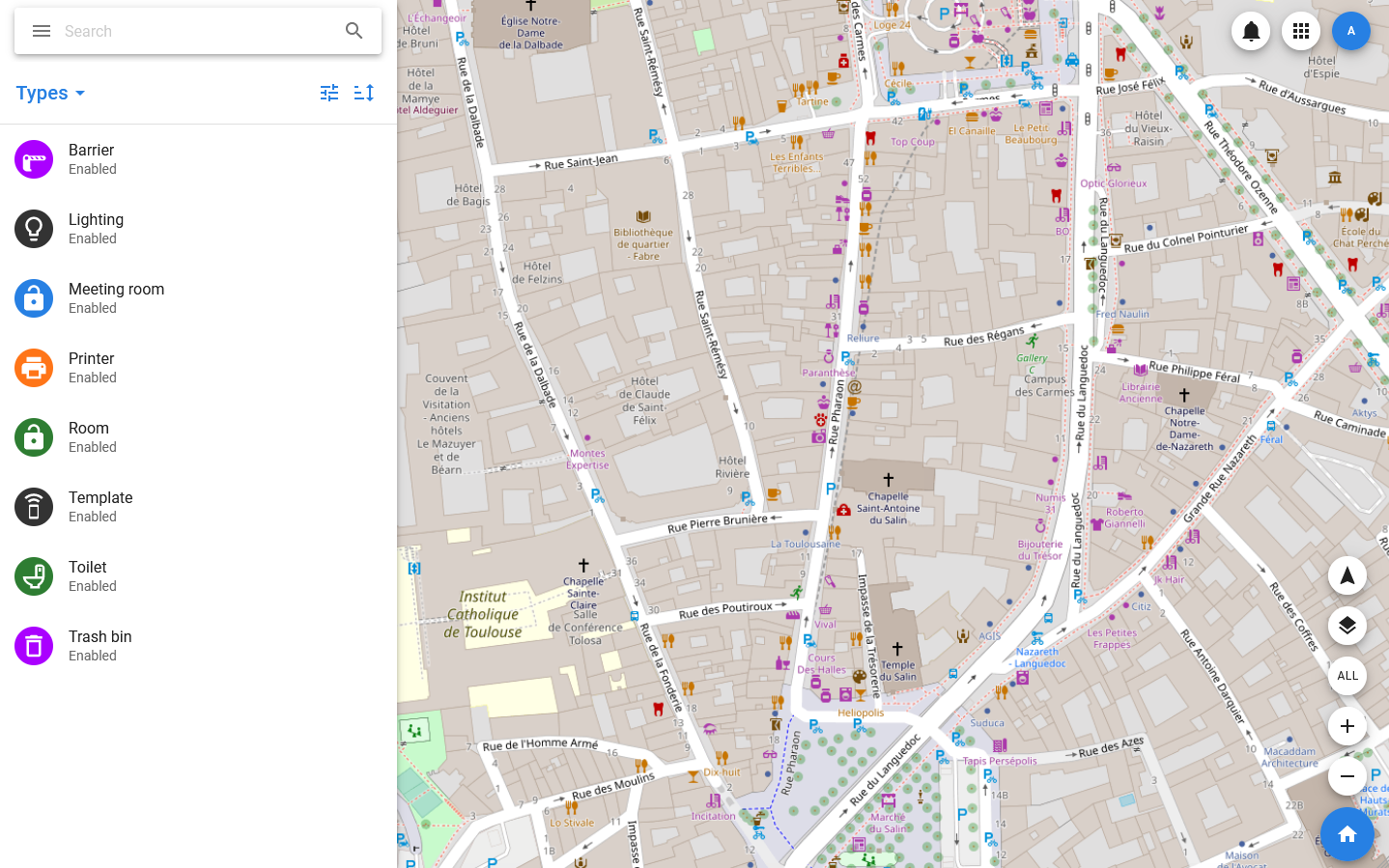
When creating or changing a type, fields and groups of fields can be added, such as:
- Optional states — each state is described by a name and an icon that will be used as an object icon. The default state is created automatically, getting the name Normal and the default object icon, but can be measured when editing the type. You cannot delete the default state.
- Monitoring properties — the monitored properties. Each of them is described by a group of fields that can be associated with device or dataset fields, as well as the number of critical event conditions specified at the data schema level (each condition is described by a set of properties).
- Management properties — managed properties. They are also described by groups of fields that can be mapped to device and dataset fields. The purpose of Management properties is to transfer certain values (for example, settings) to devices and datasets.
- Coordinate sets — when editing a type, you can specify the number of field groups in the data schema that will be used for importing and exporting coordinate sets (latitude, longitude, altitude, GPS status).
Thus, creating and using types allows you not only to customize the appearance of objects on the map, but also to ensure uniformity in the processing and presentation of similar information.
For example, creating and using the «parking space» type allows you to present information about parking spaces regardless of whether all objects use the same or different models of parking sensors. Whatever the device used, the user will be able to distinguish free parking spaces from free, broken or not working, and work with their properties and settings using the same names (instead of the names used in the device drivers).
View types
To view the list of existing types in the system, select Settings > Types in the menu. This will open a list of types for which group selection, sorting, and filtering are available.
When the system is deployed, it automatically creates a default type, and in each type-a default state, the icon of which is used as the icon of the type in the list. The list also displays type names and statuses: any type can get the Disable status, and thus creating objects using it will become impossible.
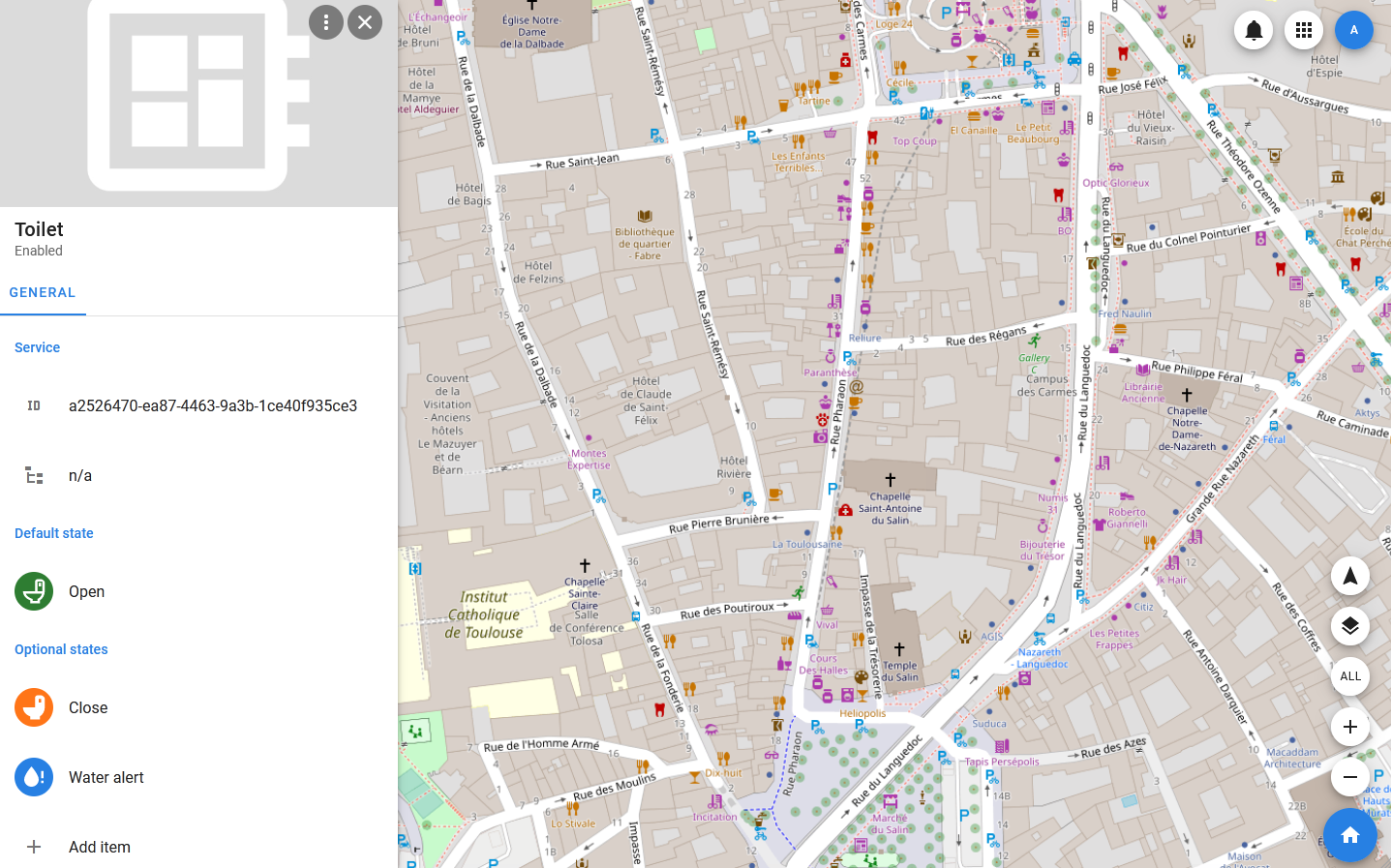
Detailed information about the type and the log of its changes can be found in its card, which opens when you select a line in the list. The GENERAL section of the card displays the following sections:
- Default state — the default state is always present in the type, it can not be deleted, but you can edit it by replacing the name and icon.
- Optional states — additional states, they may not exist.
- Monitoring — fields for which critical event conditions that generate notifications can be configured, and which should be displayed in the GENERAL tab of objects.
- Management — fields for which the ability to set values and transfer these values to objects (devices or datasets) is implemented, and which should be displayed in the GENERAL tab of objects.
- Tracking — the tracking parameters. These include the number of optional coordinates on which the current coordinate should be calculated, as well as the number of objects to which the current coordinate can be passed.
- Description — description of the type.
Creating and editing a type
In order to add a new type to the system, you need to open the list of types by selecting Settings > Types in the menu, and then in the toolbar of the list, select Types > Add new. In the modal window that opens after that, you must specify the type name and add a description. The type will be created with the default state and with zero optional coordinates (that is, there are no optional coordinates by default, only the default and current ones), and then its card will open. The type extension (adding or changing states, properties, coordinates) is performed via the card: within each section, the Add item is available, which allows you to add elements. Editing and deleting elements is available through their context menu, which appears when you hover the mouse pointer over them (in the desktop version).
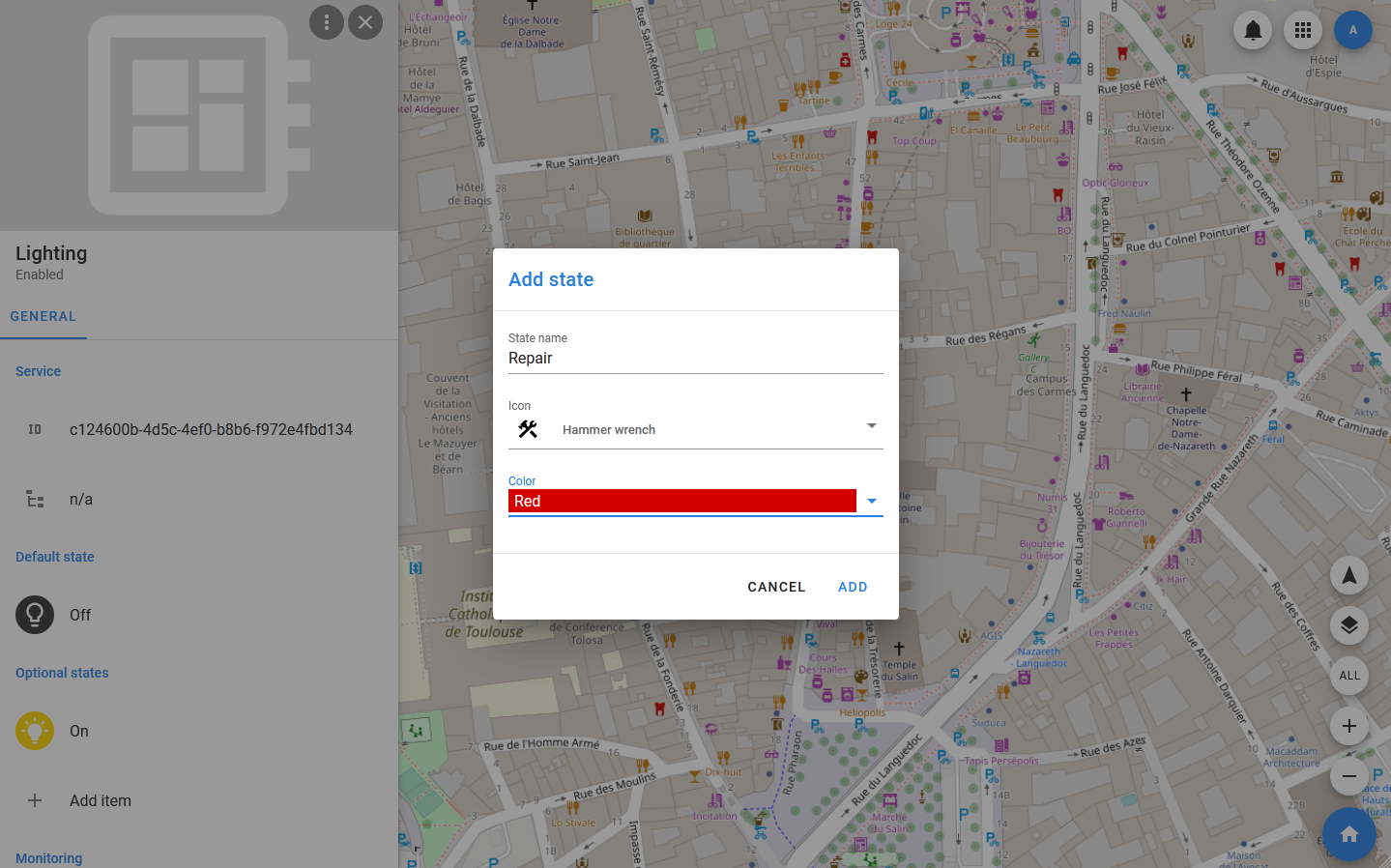
Adding and editing states
The state includes the name and icon: these are the ones you need to specify to create the state. When editing the state, they can be changed. PixelMonitor supports the use of Font Awesome icons, and adding them is possible using their short names. If for some reason the icon is not specified or unavailable, the default icon of the object is substituted instead.
The type does not include conditions for changing states, only the states themselves are formed, which can be used when configuring objects or templates.
Important
Changes to state icons may not be applied instantly to objects in these states.
Adding and editing properties
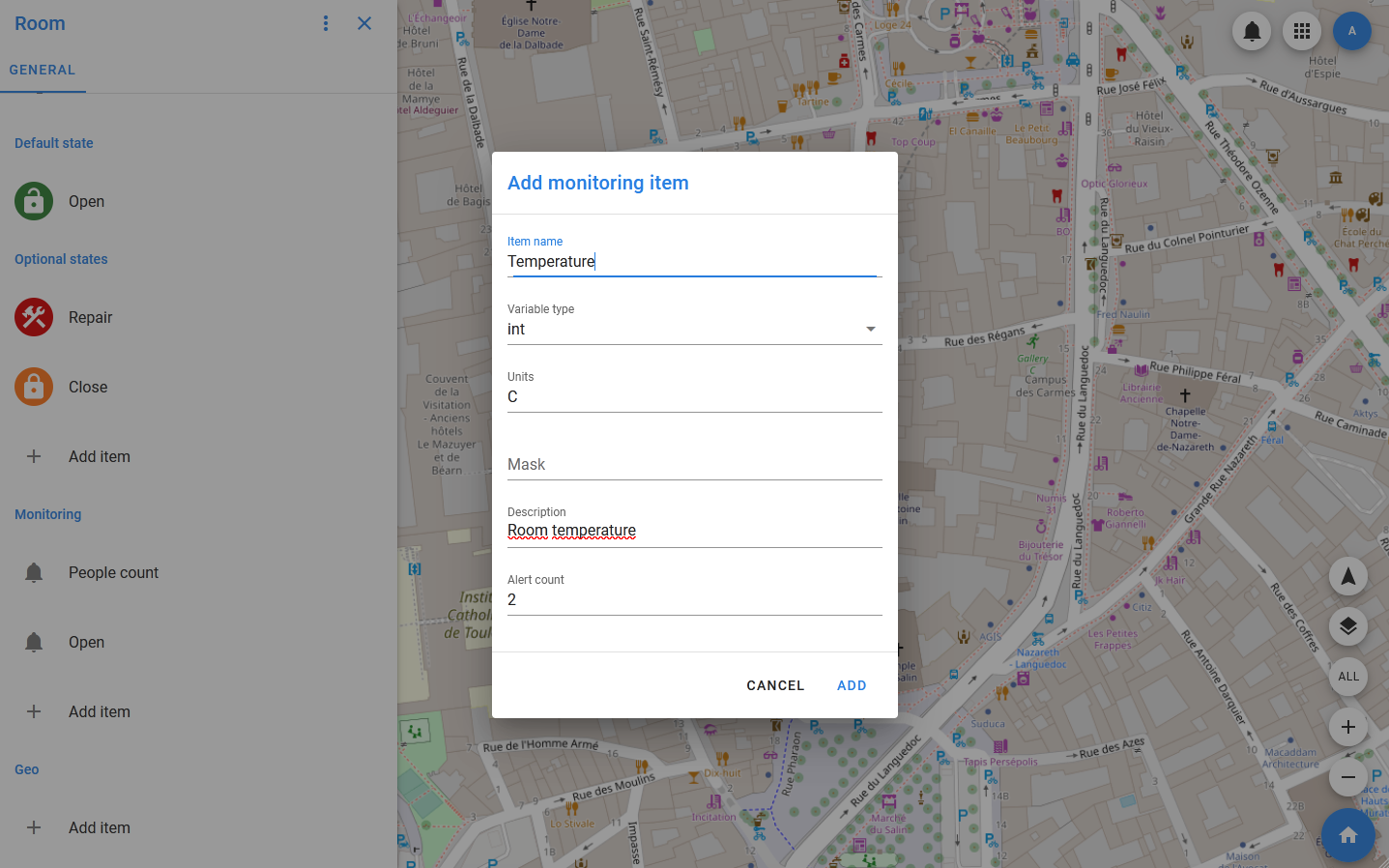
To add a field to the Monitoring section, specify:
- Item name — the name under which the property will be displayed in objects and in the history. This field is mandatory.
- Variable type — specifies what will be the value of the property. These can be strings (sring), integers (int) or fractional (float) numbers, as well as boolean variables (bool). This field is mandatory.
- Units — an optional field in which you can specify the units of measurement that should be displayed when working with property values.
- Mask — the mask according to which the value should be displayed in the interface.
- Description — optional field for a brief description of the property.
- Alerts count — the value of this field shows how many critical event conditions can be set for the property. It is important to note that all the conditions are simple, so if you need to monitor the value going beyond the specified interval, you must set at least two conditions for it. By default, the number of conditions is 1, there can be no more than three in total.
To add a field to the Management section, specify:
- Item name — the name under which the property will be displayed in objects and in the history. This field is mandatory.
- Variable type — specifies what will be the value of the property. These can be strings (sring), integers (int) or fractional (float) numbers, as well as boolean variables (bool). This field is mandatory.
- Units — units of measurement that will be displayed in the interface when the property value is displayed.
- Mask — the mask according to which the value should be displayed in the interface.
- Regex — a regular expression for value validation, used for strings.
- Value range — the interval or several intervals in which the value should be located (for numeric values).
- Value set — a set of values. Used if the property must accept values from a predefined list.
- Description — optional field for a brief description of the property.
Managing coordinates
At the type editing level, you can specify the number of sets of optional coordinates (each set includes point coordinates, address, height, and floor), as well as the number of fields to which coordinates can be exported.
Optional coordinates are intended for use in objects that can change their location and include one or more geo-positioned objects. If you assign their coordinates as optional object coordinates, the current object coordinate will be calculated based on them.
Coordinate export is the ability to transfer the current coordinate of an object to objects.