Landmarks
A landmark is a circle-shaped area for which the name, center, radius, and height parameters are set. An object is considered included in the landmark if it is located inside the circle, that is, it is closer to the center by a distance less than the specified radius.
Viewing landmarks
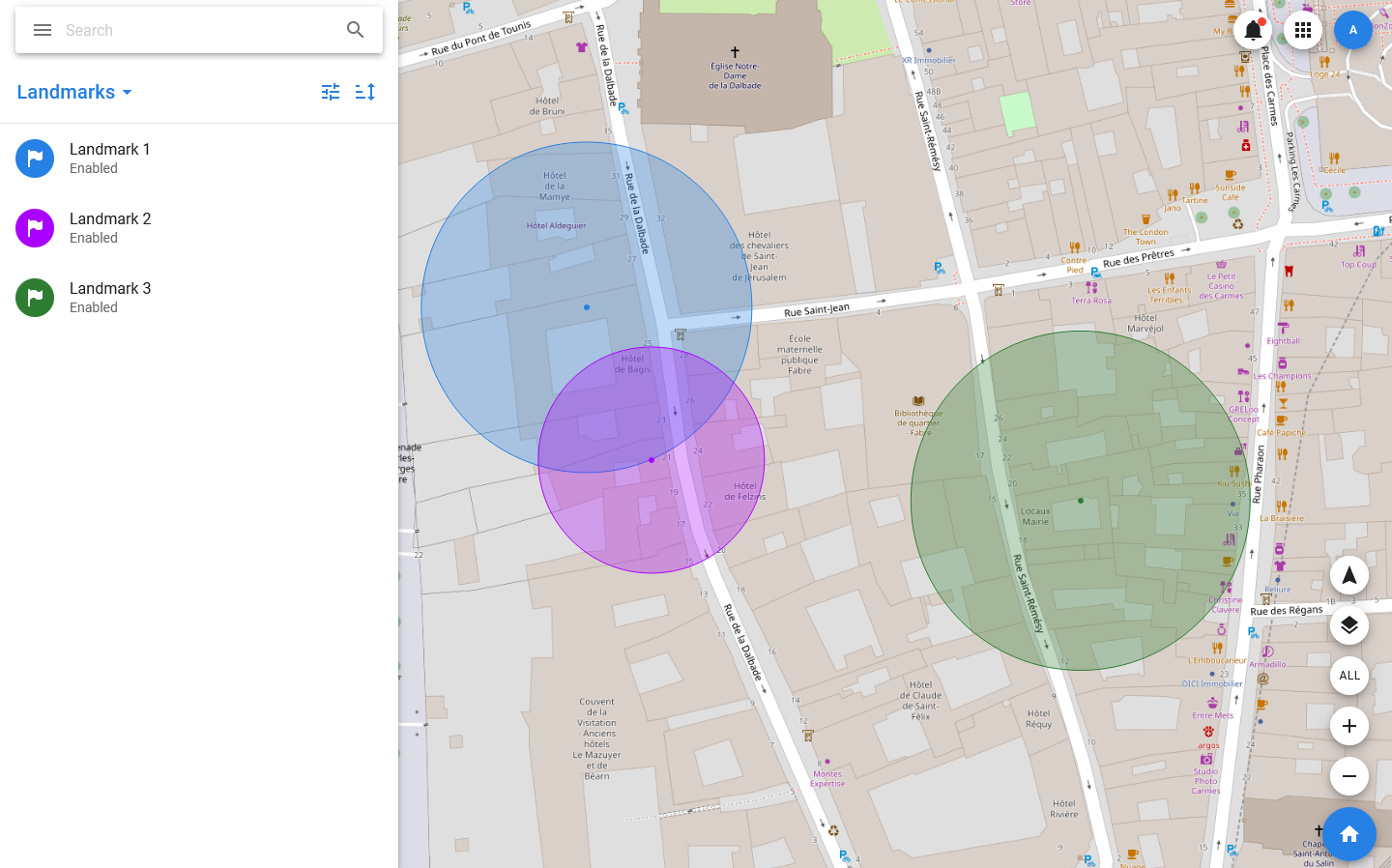
A complete list of all the landmarks is opened when you select the same item in the menu. At the same time, the landmarks are also displayed on the map as circles of their assigned colors. The list displays the avatar of the landmark, whose color also corresponds to the assigned color, name, status, and area. Also, the status bar contains icons corresponding to disabled notifications and favorites.
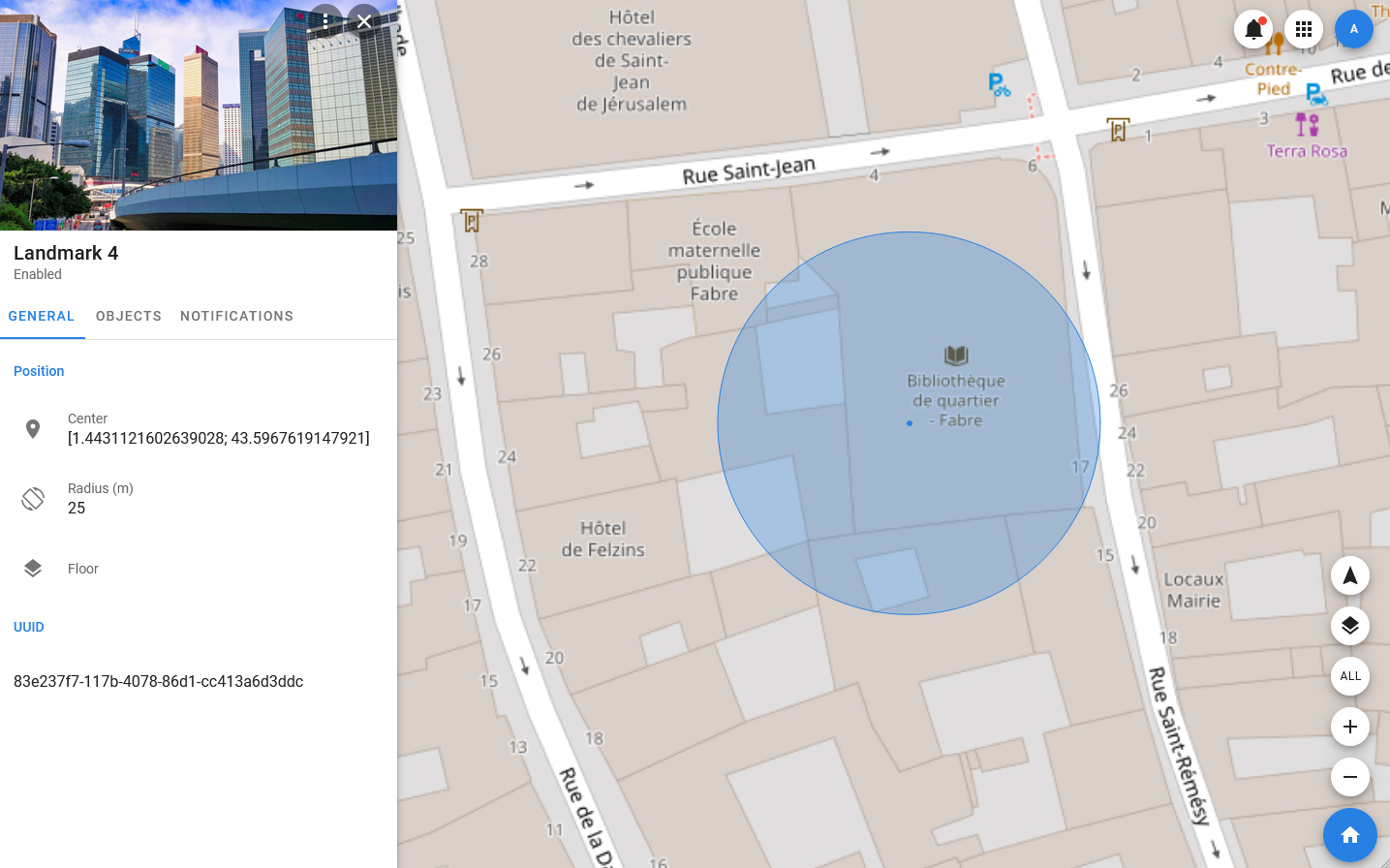
When you select a landmark in the list or on the map, its card opens, which includes the landmark image, avatar, name and status bar, as well as the following tabs:
- GENERAL — displays information about the current position of the landmark, its description, and UUID.
- OBJECTS — a list of objects that are included in this landmark.
- MEDIA — media files related to the trademark. Work with them is carried out in the same way as in the object.
- NOTIFICATIONS — this tab displays all notifications related to this landmark (sent by both the system and users).
- ACCESS — a tab that displays information about access rights.
Landmark management
Landmarks are primarily designed to track the geographical position of objects (their approach and distance from certain points on the map), but they also have an additional function. Indoor plans displayed on top of the map and images that simplify the relationship between real objects and objects on the map can be linked to the landmark.
In addition, the ability to set coordinate sources is available for the benchmarks: in this case, the coordinates of the landmark can be taken from the device and change over time.
Creating landmarks
To create a landmark, you need to:
- In the menu, select Landmarks and move the map so that its center coincides with the place where you want to place the landmark.
- In the toolbar of the list of landmarks, select Landmarks > Add new.
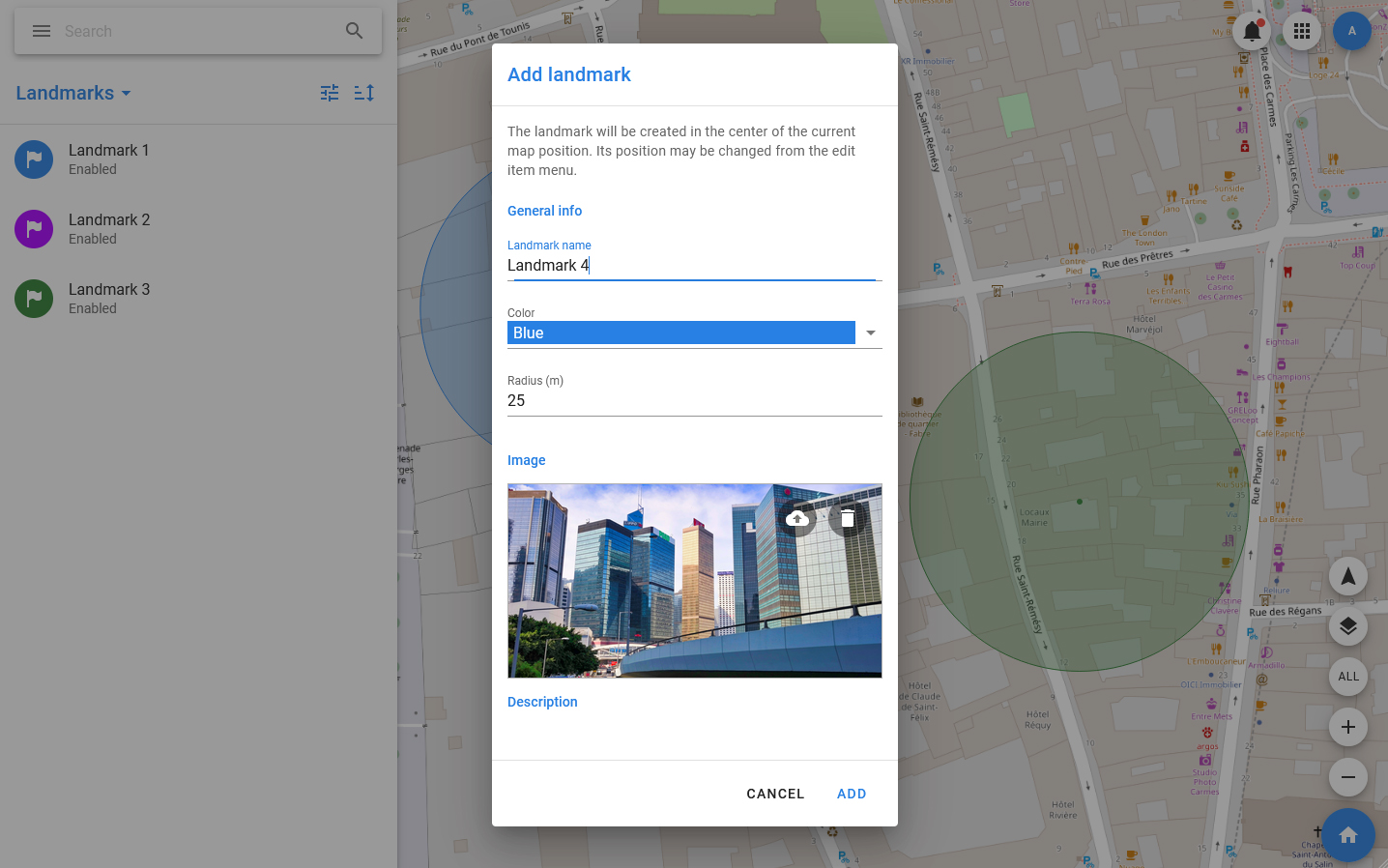
- In the window that opens, specify the name and radius of the landmark, select its color and main geotag.
- Click ADD.
A new landmark will be created at the point corresponding to the current map center. If necessary, you can change the position of the landmark by using the Move method or setting the coordinate source for it.
Editing landmarks
The following actions are available for the landmark:
- Edit — edit basic information about the trademark: name, color, description, card cover.
- Change access — change the access rights to the landmark.
- Mute — disable notifications from the landing page.
- Set disable / Set enable — sets the value of the Enable / Disable flag. If the landmark gets the Disable flag, then object occurrences are no longer calculated for it.
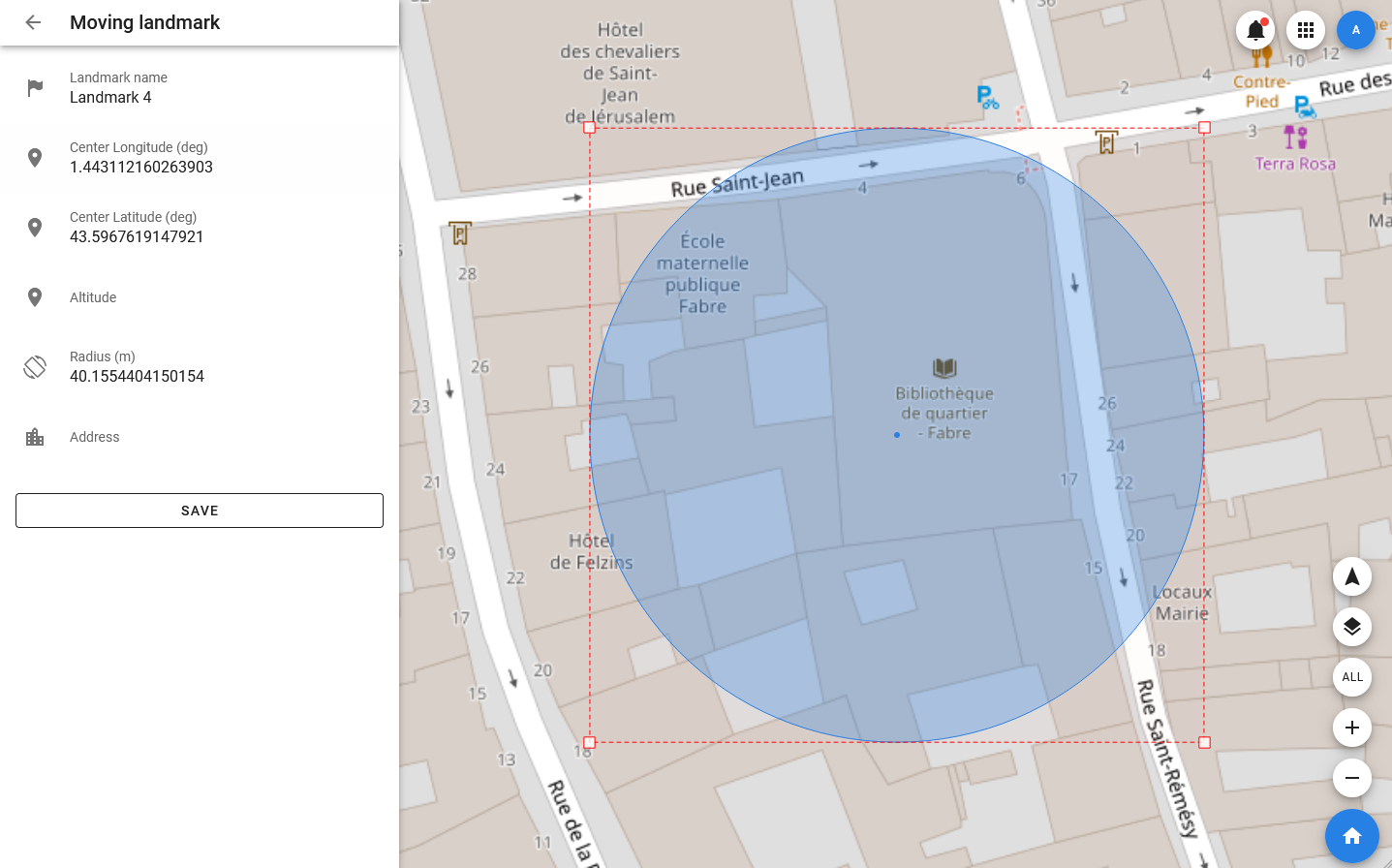
- Move — move the landmark on the map.
- Set coordinates sources — sets the sources of optional landmark coordinates. Allows you to link the center of the landmark to a stationary or moving object.
- Send notification — send a notification linked to the landmark.
- Show history — show the history.
- Download notifications — download notifications.
- Copy UUID — copy the unique identifier of the landmark.
- Delete — delete the landmark.
Moving landmarks
A landmark can be assigned one or more objects as coordinate sources: if the object moves, the landmark will move with it.
To do this, use the Set coordinates sources method — when you select it, a window opens in which you can select from one to three sources.
Sets of optional coordinates have priority: the highest for the first, the lowest for the third. If the first set has the GPS fix status and the coordinates are defined in it, then it is used as the current landmark coordinate. Otherwise, the next set in order is used.
In the event that all set sets of optional coordinates receive the Not fix status, the default set is used as the current one, which corresponds to the coordinates of the last point where the landmark was placed manually.