Geotags
A geotag is a special object that allows you to manage addresses. A geotag is a direct prism that serves to define a space that has a specific address: a building, a separate floor or an office. The addresses of objects and other elements of the system are determined by which geotags they are located inside.
A geotag is defined by an array of points defining its shape, the height of the floor (the lower boundary), the height of the ceiling (the upper boundary), as well as the base point. A base point is a point inside a geotag that can be used to set the coordinates of objects when they are placed at an address.
In addition to storing address information, geotags also serve to control the display of objects on the map. When selecting a geotag, only those objects, plans, geozones and landmarks that are associated with this geotag remain on the map.
Viewing geotags
The full list of geotags existing in the system can be viewed by selecting the item of the same name in the navigation menu (Settings > Geotags).
When you select a geotag in the list, its card opens, in which you can view detailed information about it: its heights, coordinates and height of the base point, as well as a detailed address. In addition, media can be linked to the geotag — they are displayed in the same tab inside the card.
To select geotags on the map, use the button located in the lower right corner. Clicking on it opens a list of available geotags to display. After selecting a geotag, only those elements that are associated with it remain on the map, for example, only objects related to a specific room inside a building can be displayed.
The choice of a geotag affects not only the display of objects, but also the list of plans available for inclusion.
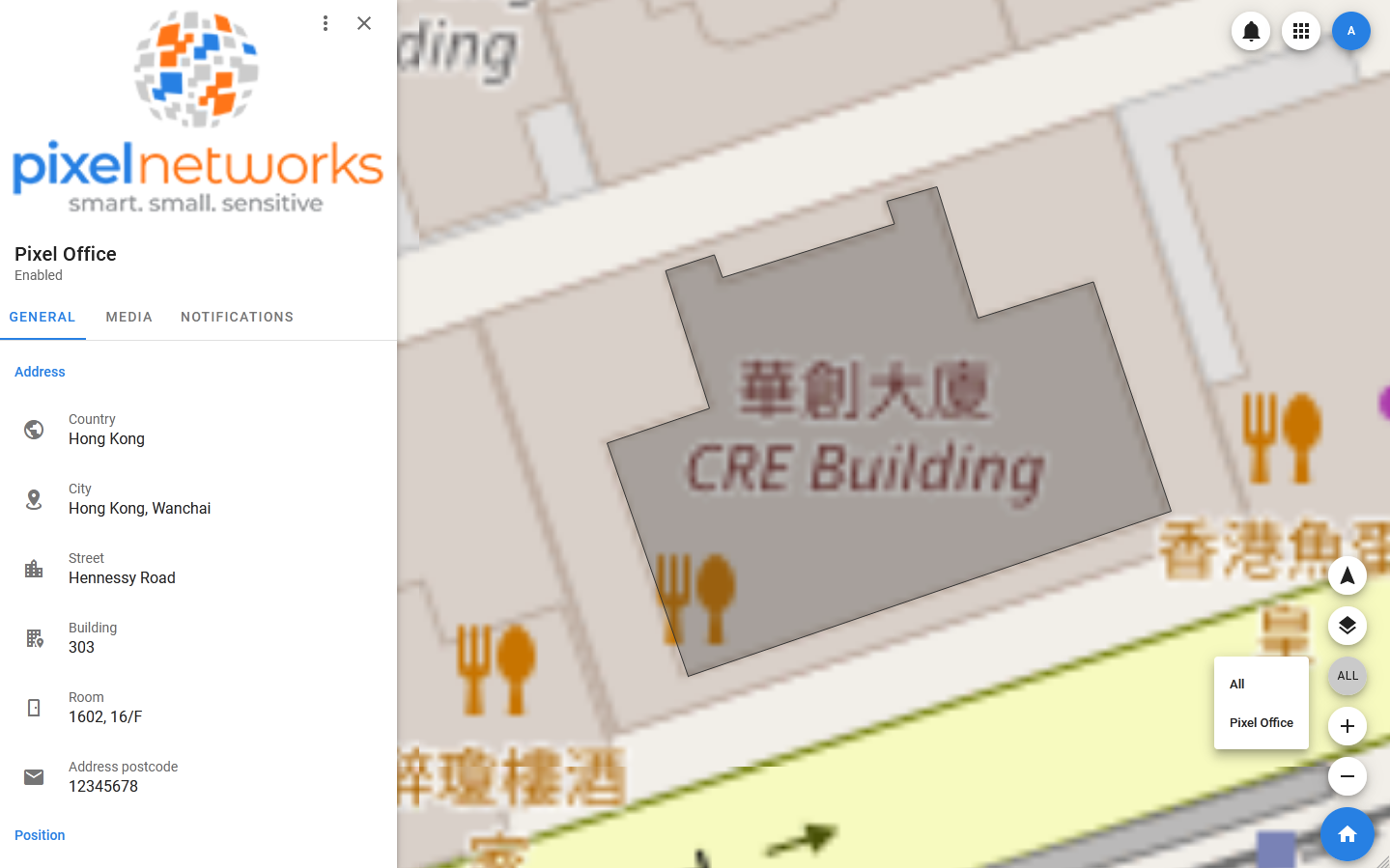
Geotags management
Creating geotag
To add a geotag, you must:
- Open the side menu.
- Select Settings > Geotags.
- In the toolbar of the list of geotags, select Geotags > Add new.
- In the modal window that opens, specify the name of the geotag, its height, address, image.
- Click Add.
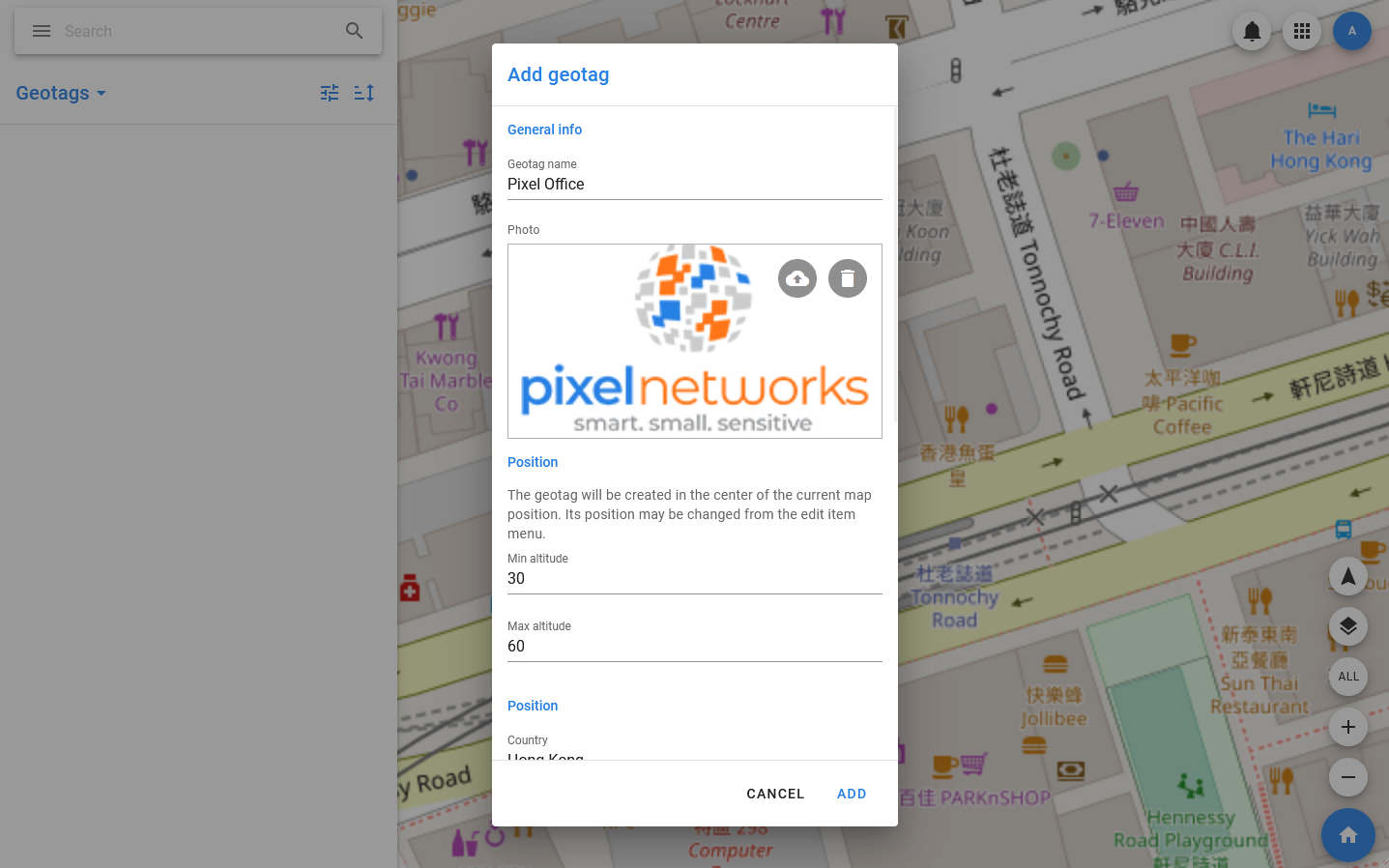
The new geotech has a square shape, and its base point is located in the current center of the map (and in the center of the figure, respectively). You can change its shape in the visual editor by analogy with changing the shape of the geozone.
Editing geotag
The following actions are available for the geotag:
- Edit — edit basic information about the geotag: name, address, heights, description, card cover.
- Change access — сhange the access rights to the geotag.
- Mute — disable notifications from the landing page.
- Disable / Enable — sets the value of the Enable / Disable flag. If the geotag has the Disabled status, it will not be available in the map management list and will not participate in the calculation of addresses for moving objects.
- Change form — changing the boundaries of the geotag in graphical mode. Allows you to add points and change their position.
- Move base — moving the base point in graphical mode.
- Recalculate base — calling a method that allows you to calculate the new coordinates and height of the base point, taking into account the selected parameters.
- Show history — show the history.
- Download notifications — download notifications.
- Copy UUID — copy the unique identifier of the landmark.
- Delete — delete the landmark.
To change the position and shape of the geotag, select the Change Form menu item. Editing is carried out according to the following principle:
- Any existing point (indicated by a white square) can be moved, while all other points remain in their previous positions.
- A new point can be added to an edge between two existing points — the positions where points can be created are indicated by semi-transparent squares. To create a point, click on the selected position. After that, the square will turn white, and the point can be moved.
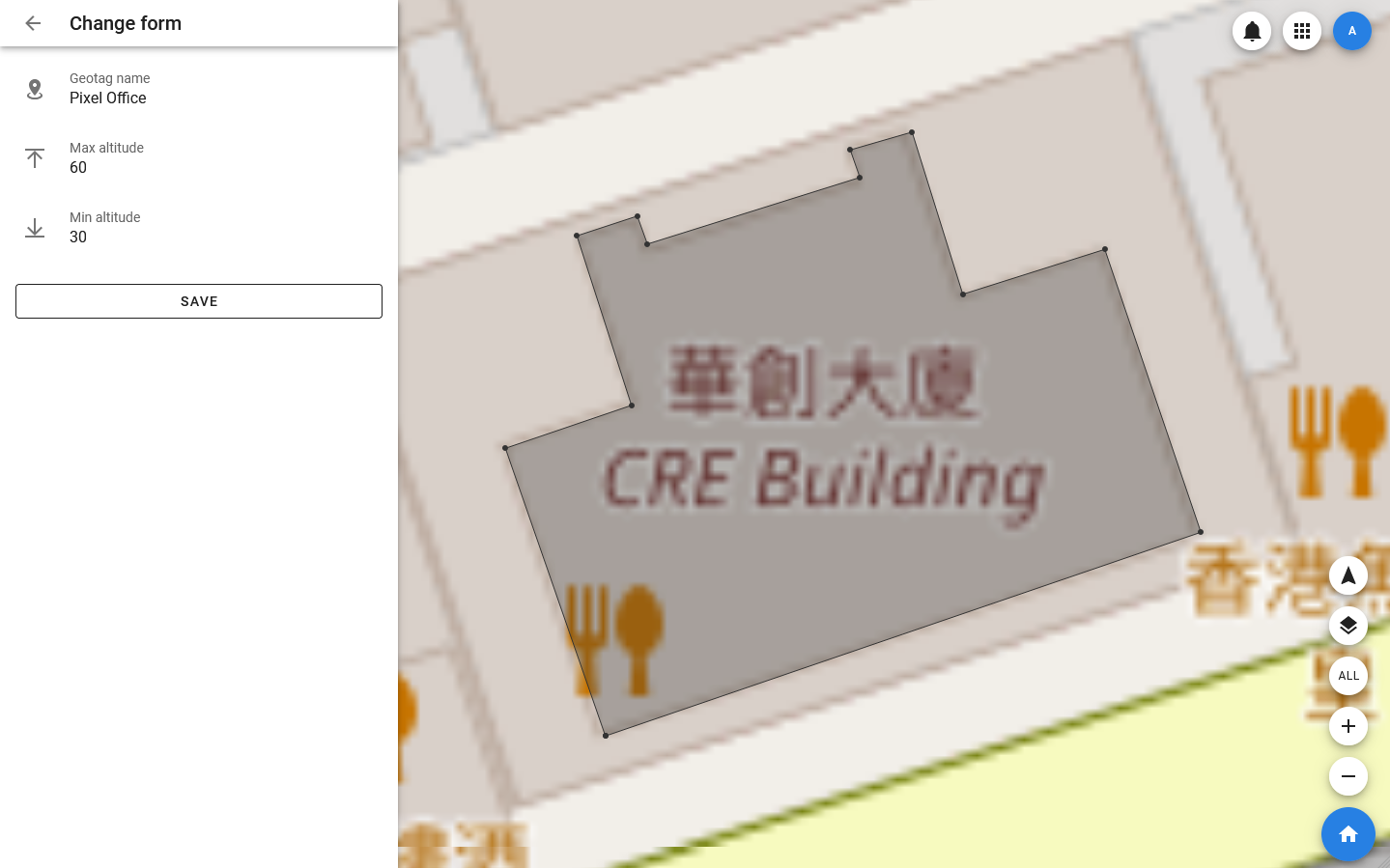
Changes are saved when the SAVE button is clicked.
You can also change the position of the base point in graphical mode, that is, by dragging the point marker on the map. To do this, select the Move base menu item.
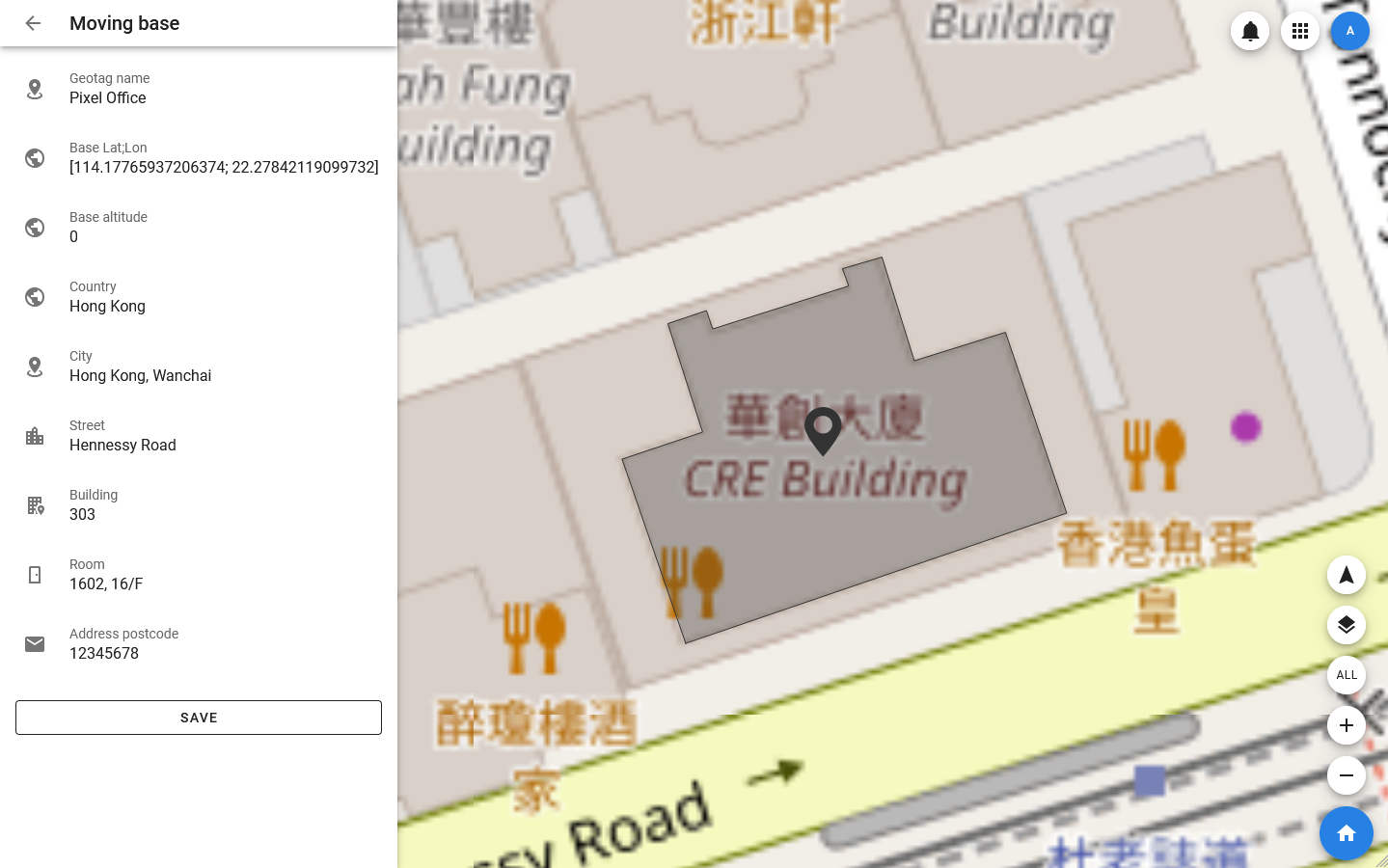
In order to set the exact value of the coordinates of the base point, you can select Edit in the context menu of the coordinate fields in the geotag card.
Using geotags
Geotags have two main purposes:
- Designation of addresses of objects, plans and other elements of the system.
- Controls the display of elements on the map.
Since there are no restrictions on the intersection of geotags (for example, you can create a geotag of a building and place geotags of individual rooms inside it), it is impossible to uniquely match an object and a geotag.
An object can be associated with all the geotags it is located inside. However, to determine the exact address of the object, the main geotag is selected for it. It is this geotag that is displayed in the GENERAL tab to describe the position of the object. All other geotags are displayed in the GEO tab: there you can link new geotags to the object or remove the link with previously added ones.
You can change the main geotag of an object through editing — by selecting the Edit menu item.
The main geotag can be used to set the coordinates of an object when it is created. If you specify the main geotag for an object when creating it, then the object is created not in the current center of the map, but at the base point of the geotag.
Important
Changing the main geotag does not affect the coordinates of the object.