Media
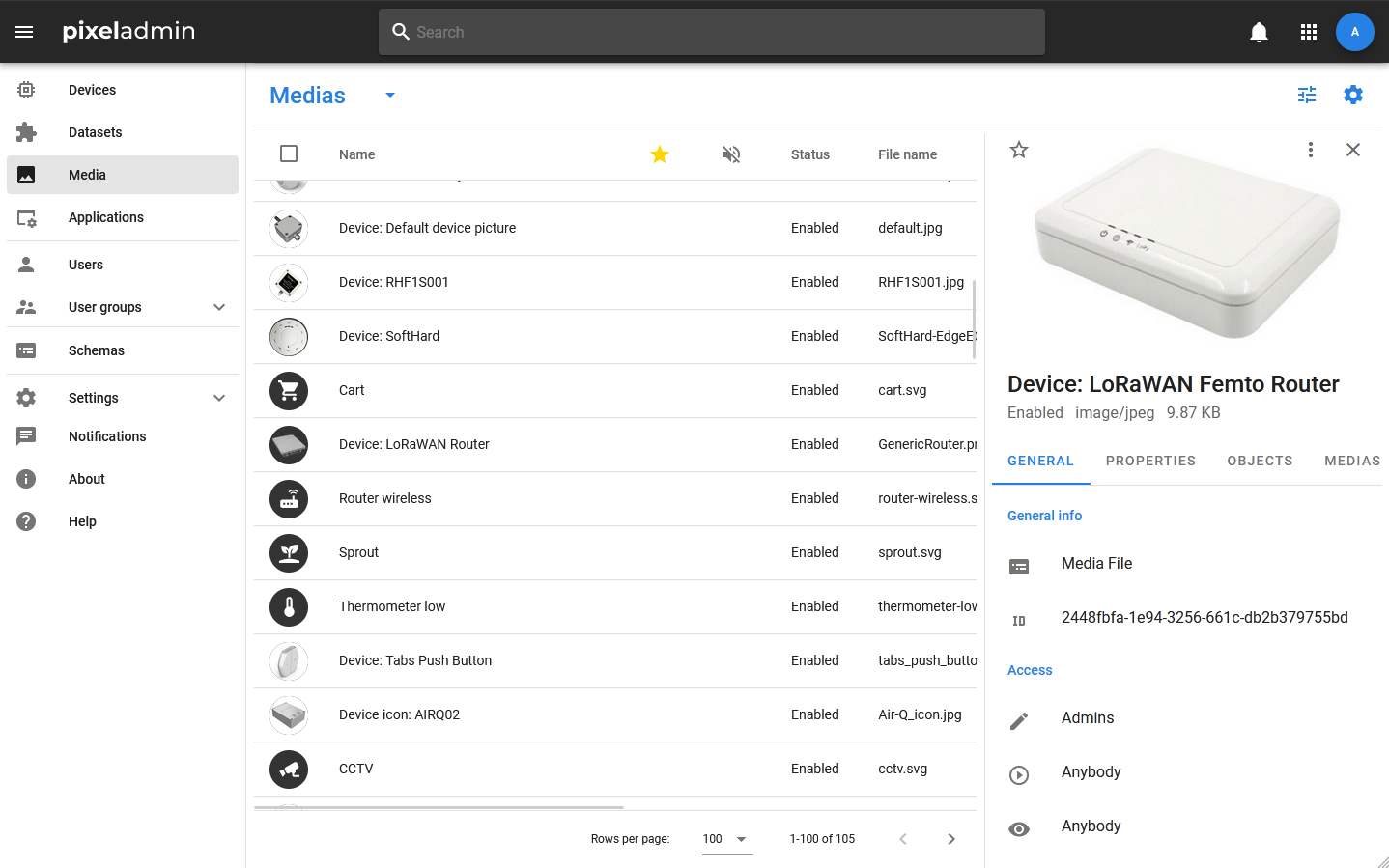
Media is a special type of object created on the basis of the data schema of the media server that is part of the party, and designed to organize the storage and use of media files, in particular, photos and images. The media object includes the name and service information about the file (its type, size), a link to get it, and a set of commands and settings that allow you to manage file loading.
Unlike devices and datasets that use different data schemas, the data schema of media objects is uniquely defined in the system.
Viewing media objects
The media table opens when you select the same item in the menu. It displays the following information:
- Name — the icon and the name of the media.
- Favorites — mark whether the media object has been added to favorites.
- Muted — mark whether notifications are disabled from the object.
- Status — the status of the media object, takes the values Enable and Disable. The Disable status means that the appserver will ignore updates to the properties of this object coming from applications, and the object itself will not send any notifications.
- Media size — the size of the downloaded file.
- Media link — the link that the object will use to send the file.
- Type of media — type of a file.
- Filename — the name of the file.
- Editors — the group that has the Edit right.
- Users — the group that has the right to Use.
- Readers — the group that has the Read right.
More detailed information about the media object is displayed in its card. The card includes the following tabs:
- GENERAL — a tab with basic information about the media object.
- PROPERTIES — a tab that displays all media properties with their current values.
- CONTROLS — a tab that displays all the methods that can be used to work with media. Each method has an icon indicating its status (installed, requested, running, error).
- OBJECTS — a tab with a list of objects associated with this dataset.
- NOTIFICATIONS — notifications related to this media object.
Creating a media object
To create a new media object, select Media > in the Media table toolbar Add new. In the window that opens, specify the name and value of the Media Enable / Disable status. After the object is created, its card opens and you can proceed to editing individual properties and uploading a media file.

Media management
The following functions are available in the context menu of the media card:
- Edit — opens the window for editing the main data about the object (names, descriptions, values of the Enable / Disable status).
- Change access — opens the standard access rights editing window.
- Change schema — changing the data schema. Using this action may lead to data loss and incorrect display of the history of changes!
- Disable / Enable — change the status of the object. An object with the Disable status will not send or receive any data.
- Mute — disabling the notification from the object.
- Show history — view the history of properties. The history can be uploaded in CSV format.
- Show controls history — view the history of controls. The history can be uploaded in CSV format.
- Download notifications — download notifications.
- Download file — download a file stored in a media object.
- Copy UUID — copy UUID.
- Delete — delete the object.
If the media is a source code file, then there is an editing option for it. You can change the source code in the built—in Pixel Admin editor without downloading the file and uploading it again.