Notifications
The Pixel Monitor has a notification system that allows you to monitor changes in the state of objects and various important system events, including alarms. Notifications can be created by both applications and users if it is necessary to report some important information about an object, and their history can always be viewed or downloaded.
Viewing notifications
For the greater convenience of users, there are several ways to view notifications in Pixel Monitor: you can view new notifications, notifications related to a specific object, as well as a complete list of notifications.
Recent notifications
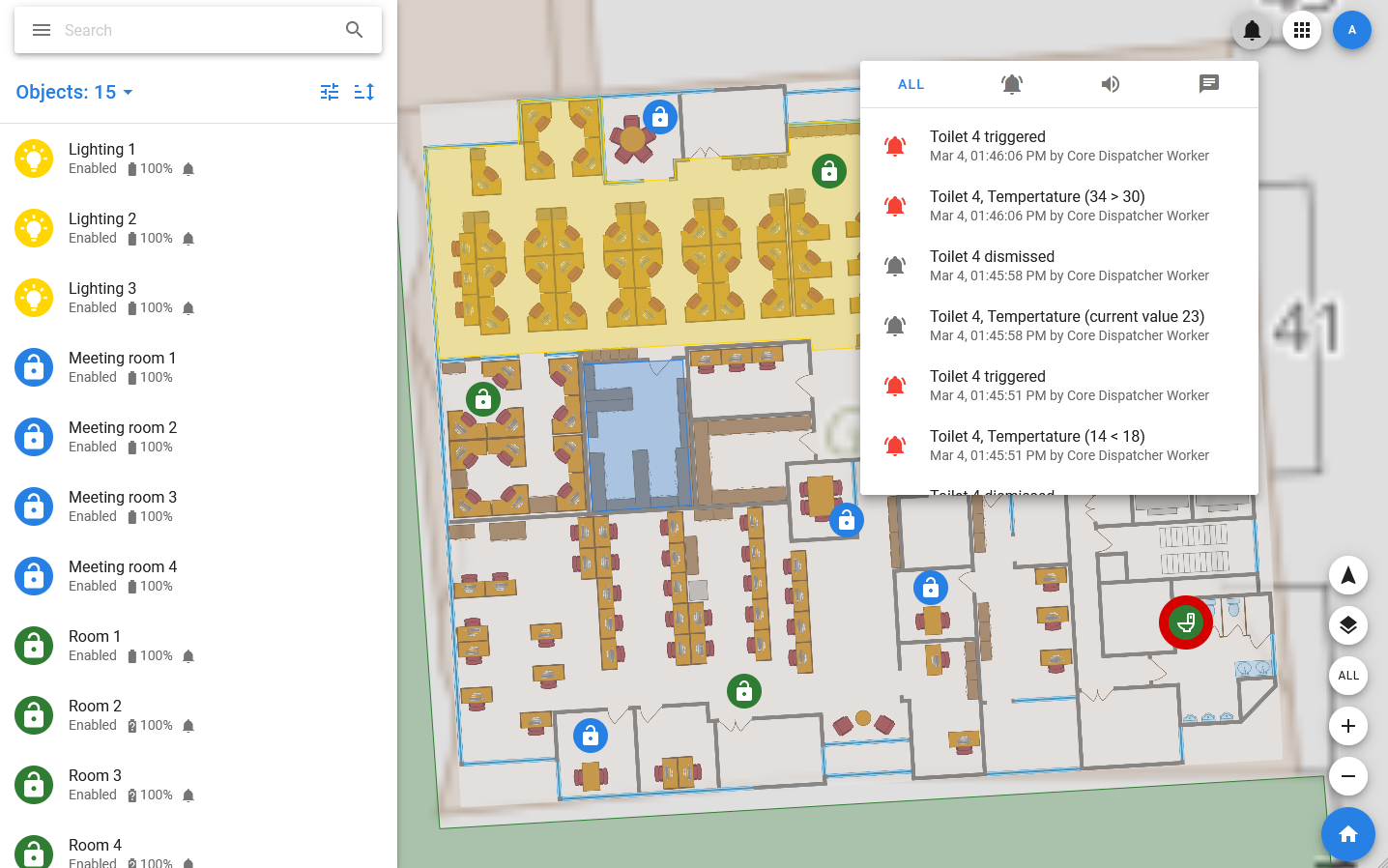
You can view the latest notifications by clicking on the bell in the upper right corner. In the list that opens, you can view all notifications or select a tab with notifications of a specific type, for example, only alarms.
As soon as a new notification appears, a red dot lights up near the bell. This allows you not to miss new notifications.
Notifications by object
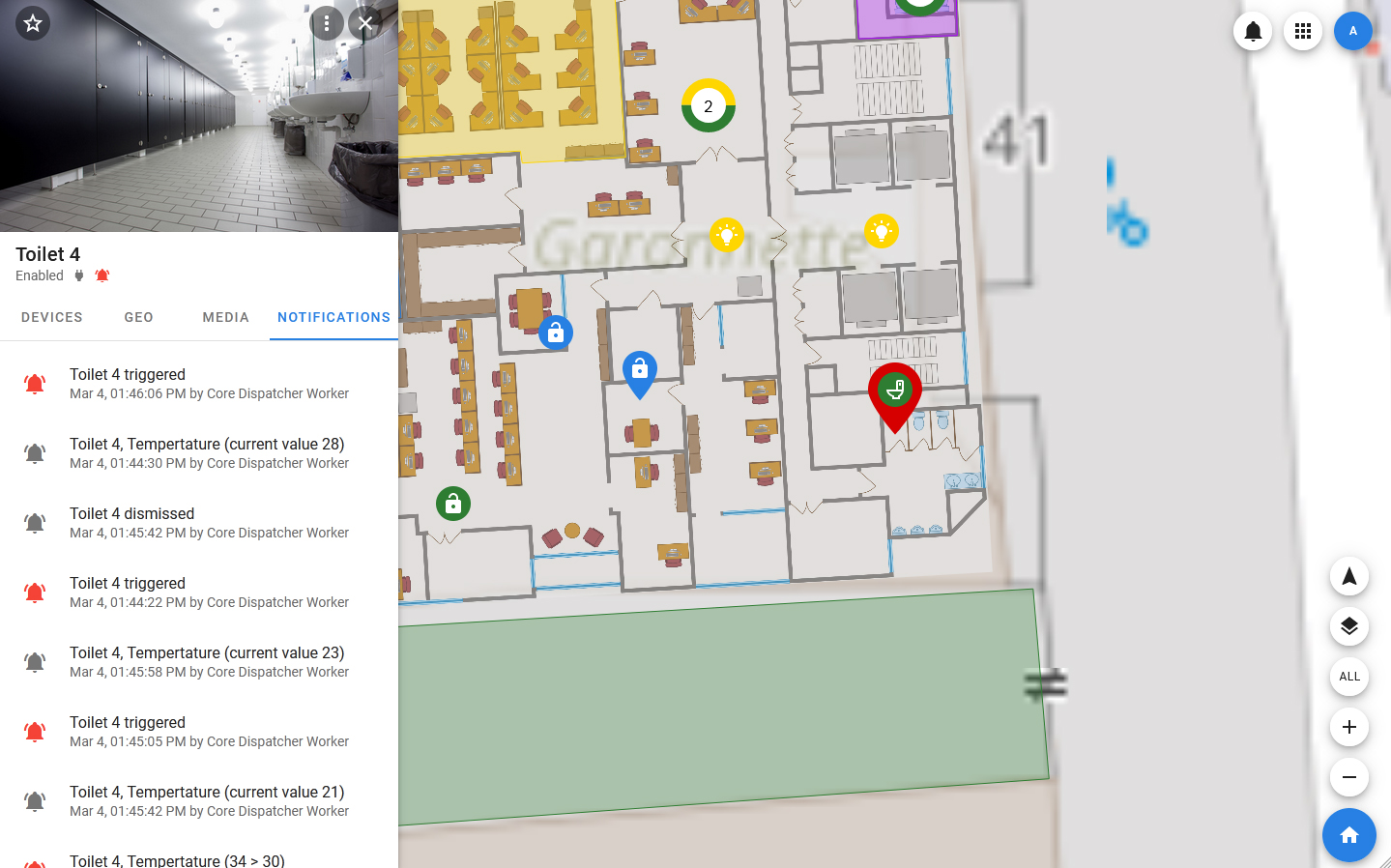
All notifications are associated with objects, so it may be necessary to view notifications of a specific object. To do this, you need to open the object card and select the NOTIFICATIONS tab in it. If there is no such tab, it means that there have been no notifications about this object yet.
Notifications for a specific object can be downloaded in CSV format by selecting the appropriate item in the menu.
All notifications
In order to view all notifications about all Monitoring objects, you need to select the Notifications item in the main navigation menu. The list, which is displayed in the sidebar, displays notifications with avatars of the objects to which they relate.
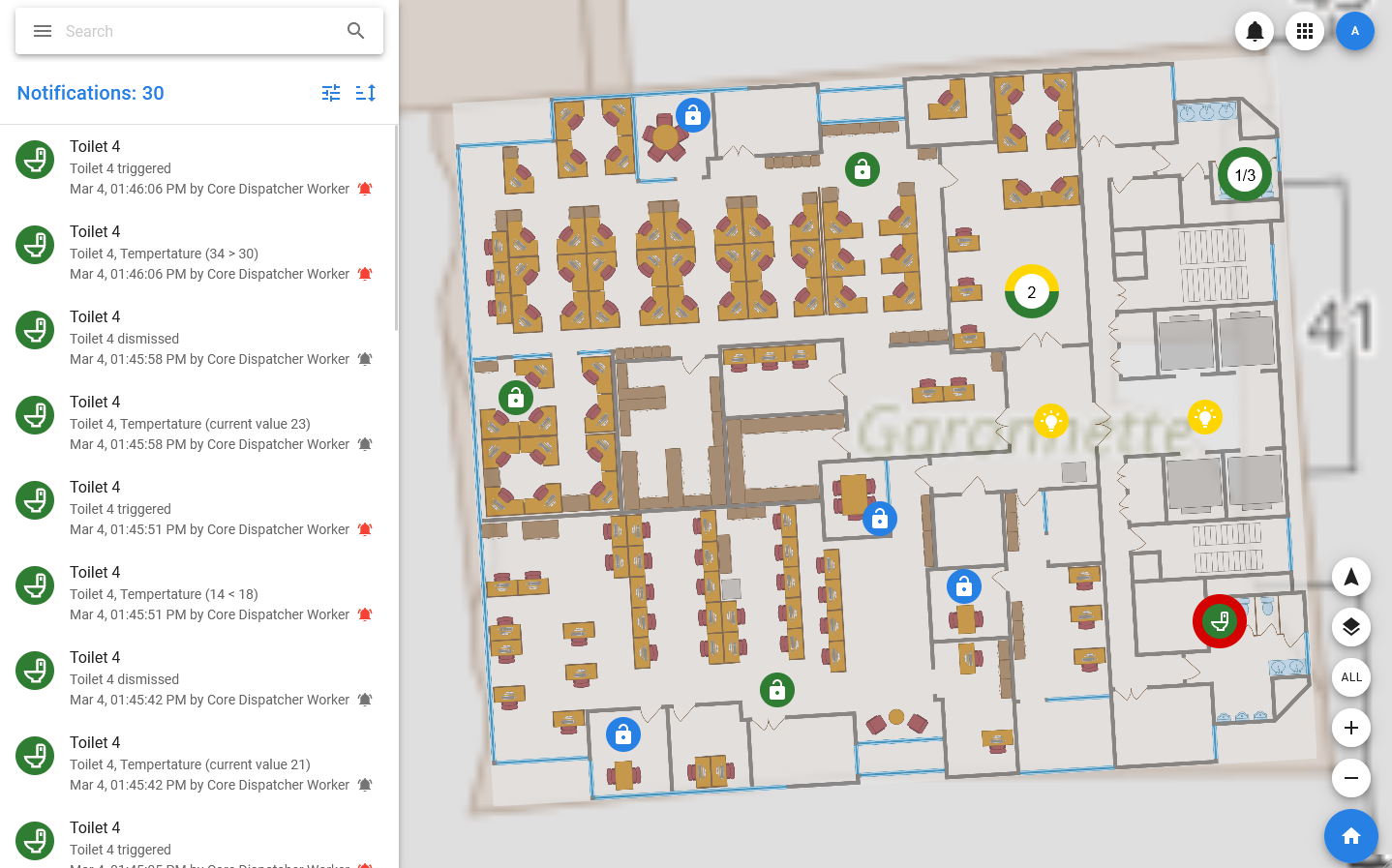
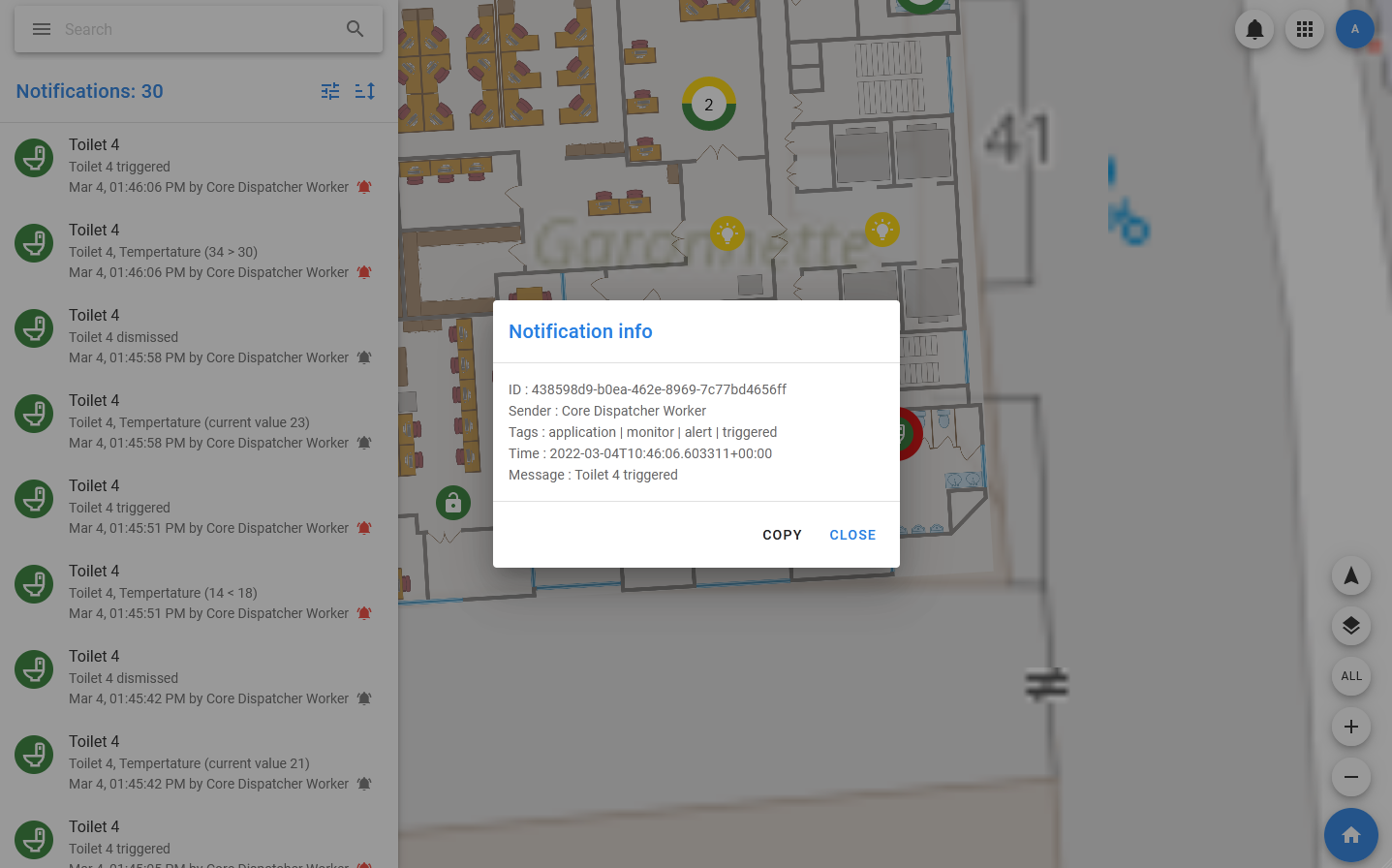
For the list, you can set filtering conditions related to both objects and notifications (their type, time of sending). Filtering conditions related to objects use their current states, not the states at the time of sending the notification.
For example, you can view notifications only for objects of a certain color or having a certain status.
Setting up Notifications
Each user can control which notifications he will receive in the Pixel Monitor. Alarms can also be configured separately.
Notifications Settings
To set up notifications, you need to open the user menu (click on the user's avatar in the upper right corner) and select the menu item Notifications Settings.
In this section of the settings, you can choose which objects to receive notifications from (from all, only from selected ones or not to receive notifications), and also specify whether notifications should be sent by email and via SMS.
Alerts Settings
This is setting up a list of events that alarm notifications should come about. For example, you can turn on or off the alarm about low batteries and loss of GPS signal.
Thus, the user can set up notifications for himself in such a way as to find out only those events that are really important to him. These settings are personal and do not affect the work of other users.
Sending notifications
If you need to inform other users of some information about the object, you can create a notification by selecting the appropriate item in the object menu.
With the help of tags, you must specify which type this notification belongs to: whether it is a critical event (alarm) or not.